
Add boundary rules to an app
Mortise checks three rules: No circular use, Other modules use only a module’s public surface,
and A module uses only the modules of its list. The first two are on by default. The third checks
nothing until mortise.json gives a module a list (see Limit which modules a module may use).
The rules live in mortise.json in the app folder, so a team shares them.
Why these rules exist is in About boundaries.
-
Select All modules at the top of the module index.
-
Open the Boundary tab, or press 2.
-
Find the box Rules for your app, “kept in mortise.json in the app folder”. In an app with more than 12 modules, the box is under the table of links.
-
Check or clear No circular use.
-
Check or clear Other modules use only a module’s public surface.
-
If this rule is on, type the folders that count as public in Folders that count as public, separated by commas. The default is
Contracts, Events. Mortise takes the new list when you leave the field. -
The first change in an app without
mortise.jsonasks “Create mortise.json in” your app. Press Create mortise.json. Mortise writes the file and reads the app again. If the file exists already, Mortise saves the change at once. -
Commit
mortise.jsonto the git repository of the app, so the rest of the team gets the same rules:Terminal window git add mortise.jsongit commit -m "chore: add the boundary rules of mortise"When a teammate pulls the commit, Mortise reads the rules from the file.
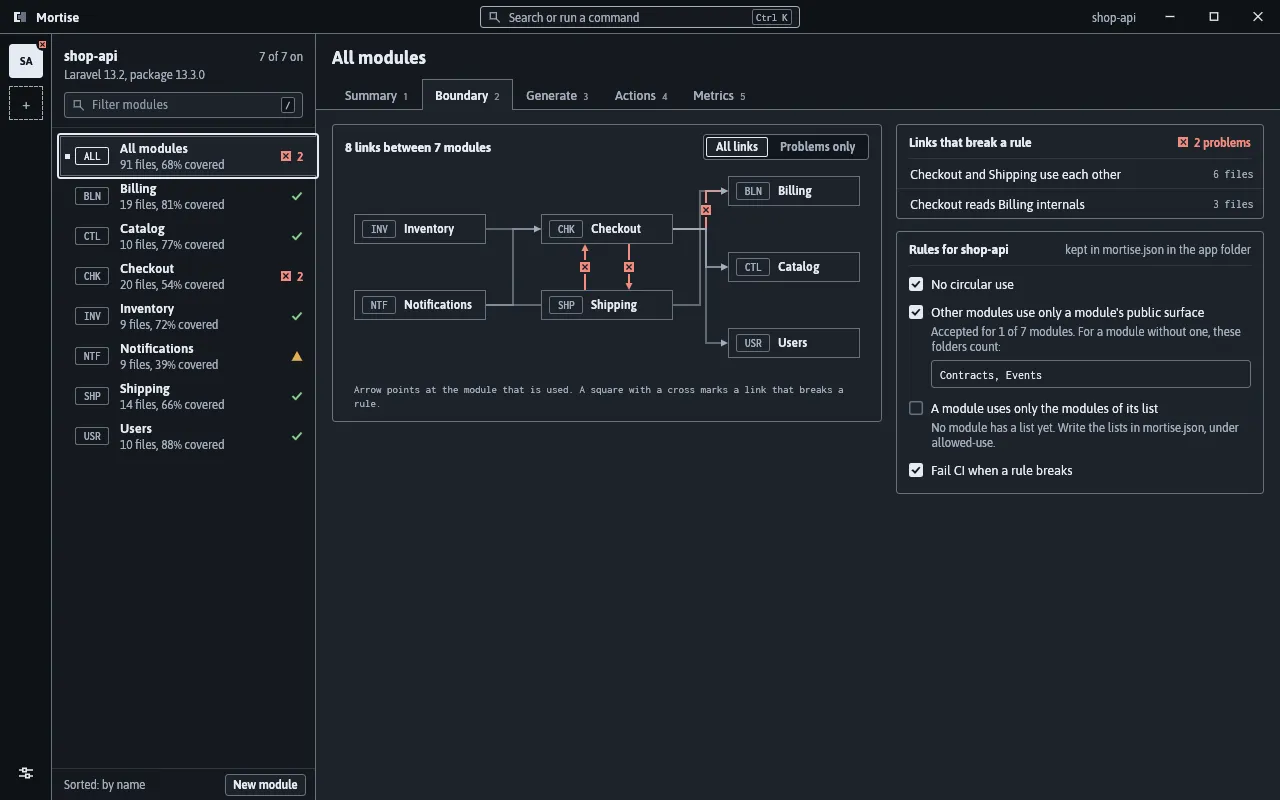
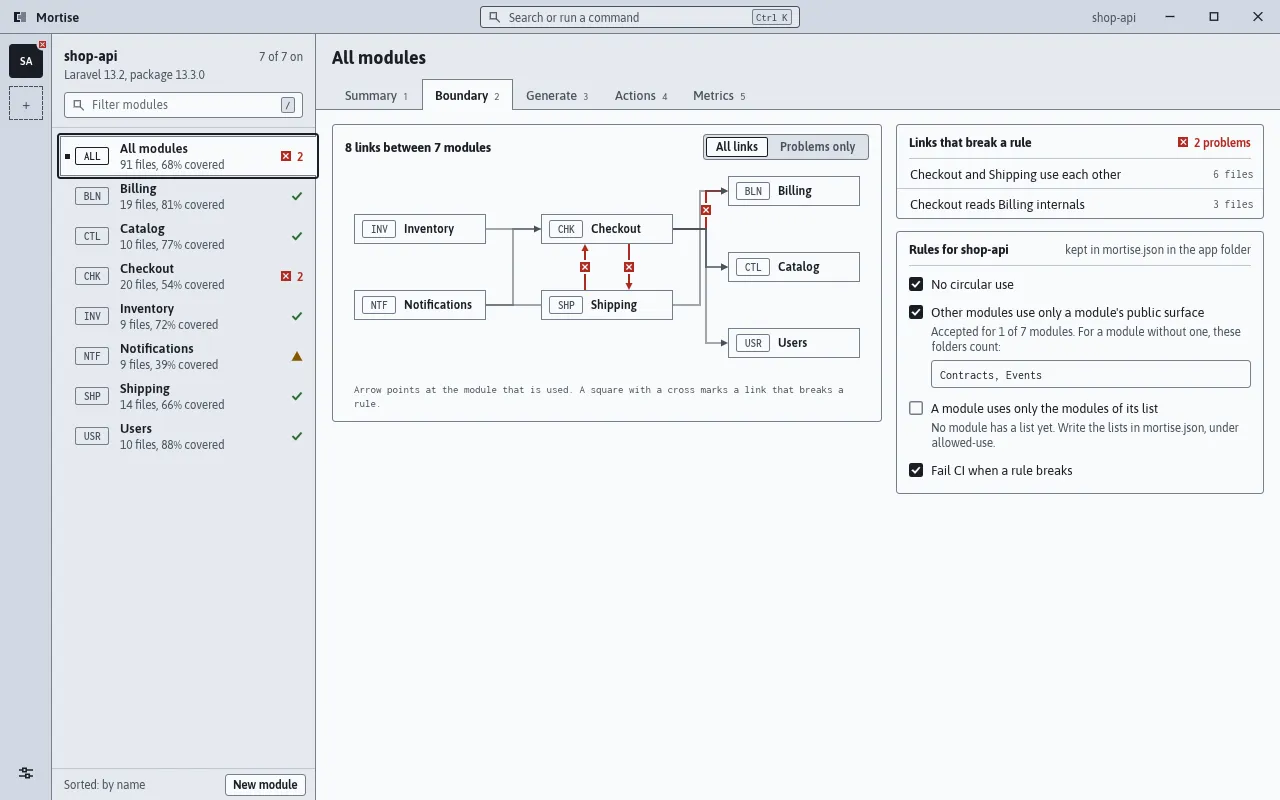
The graph and the list Links that break a rule now follow your rules, and so does Findings. Fail CI when a rule breaks is on until you turn it off. It tells the command line tool whether a problem fails CI; see How to check the rules in CI.
Limit which modules a module may use
Section titled “Limit which modules a module may use”The third rule, Allowed use, has a switch in the box Rules for your app:
A module uses only the modules of its list. The lists themselves are written in mortise.json:
give each module that you want checked the list of modules it may use.
{ "rules": { "allowed-use": { "enabled": true, "modules": { "Audit": [], "History": ["Audit", "Billing"] } } }}Here Audit may use no module, and History may use Audit and Billing only. Modules without a list are not
checked, so you can add lists one module at a time. Each use outside a list is a problem in Findings and in
mortise check, and a link that breaks the rule in the Boundary tab. The key is in mortise.json.
Under the switch, the box says how many modules have a list, such as “3 of 5 modules have a list in
mortise.json. A module without one is not checked.” Without the key it says “No module has a list yet.
Write the lists in mortise.json, under allowed-use.” and the switch is off. Turning the switch on or off
writes enabled and keeps the lists.
If mortise.json is not valid, Mortise says so and applies the default rules until the file is corrected.
The format of the file is in mortise.json. The Boundary tab is in Boundary.