
Choose the PHP for an app
Mortise reads an app without PHP. To generate files or run an action, it needs to know how PHP runs for that app. You choose this once per app. Why reading needs no PHP is in About reading without PHP.
-
Open Settings with Ctrl , (Cmd , on macOS), then choose PHP. If you are adding the app, the add panel has the same field, Run PHP with. Use it there instead.
-
Select the app in the table. The column Runs with says Not chosen for an app with no choice yet.
-
Under Run PHP with, pick one of Herd, Sail, Docker or Custom. Mortise proposes one from the files of the app folder, and the hint says what it found, such as “Found: this folder is a Herd site.”
- If the app is a Herd site, pick Herd. On Windows the command starts with
herd.bat. - If the app folder holds
vendor/bin/sailand a compose file, pick Sail. On Windows, Sail is off: it runs in WSL only. Pick Custom there. - If PHP runs in a Docker Compose service, pick Docker. The command is
docker compose exec -T app php artisan. If your service is not namedapp, change that word in the command field. - Otherwise, pick Custom and type the words before the command name, for example
/usr/bin/php artisan.
All four choices are available.
Sail is off, with the hint “Sail runs in WSL, not on Windows itself”. Herd runs
herd.bat php artisan.All four choices are available.
- If the app is a Herd site, pick Herd. On Windows the command starts with
-
If the command must start in another folder than the app folder, fill Working folder. Empty means The app folder.
-
If a command can take longer than the default, change Stop a command after. It takes a number of minutes, from 1 to 120.
-
Press Test. Mortise shows the line it runs under Test runs, then runs
artisan --versionthrough it.
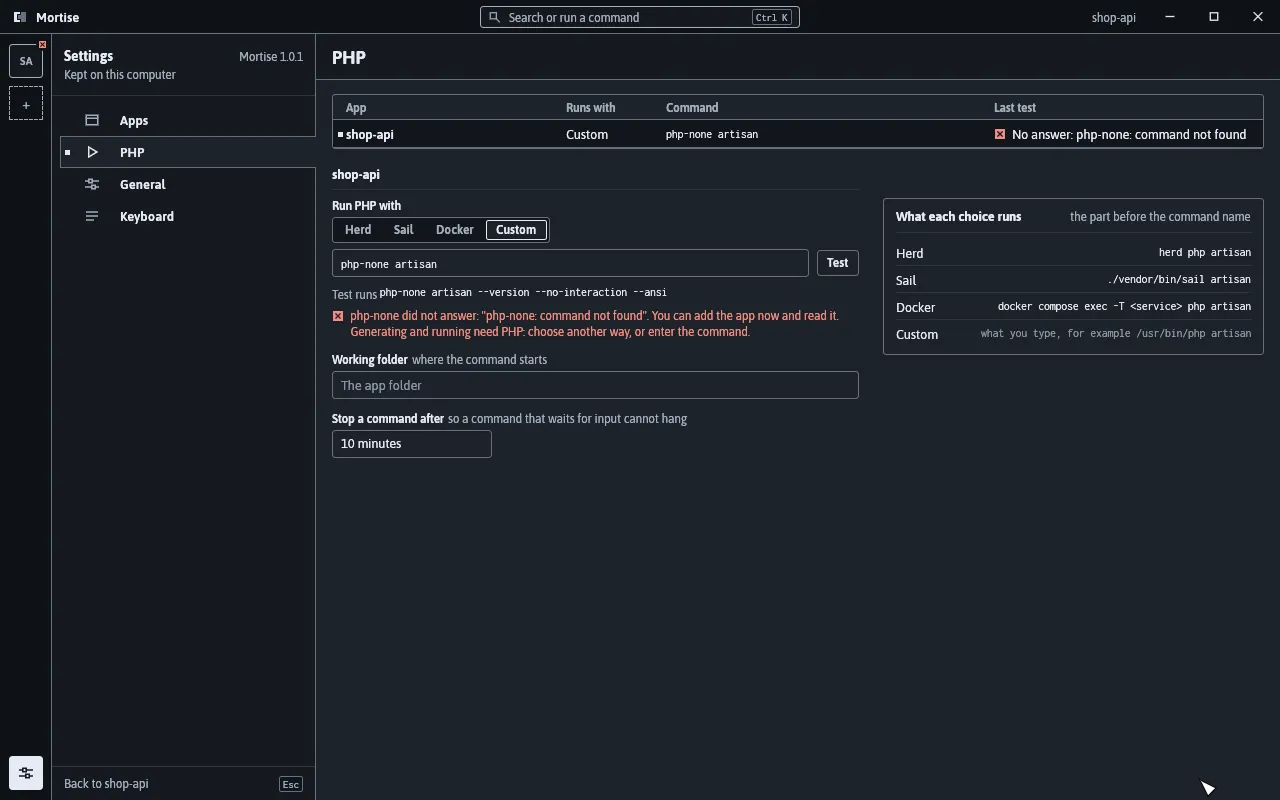
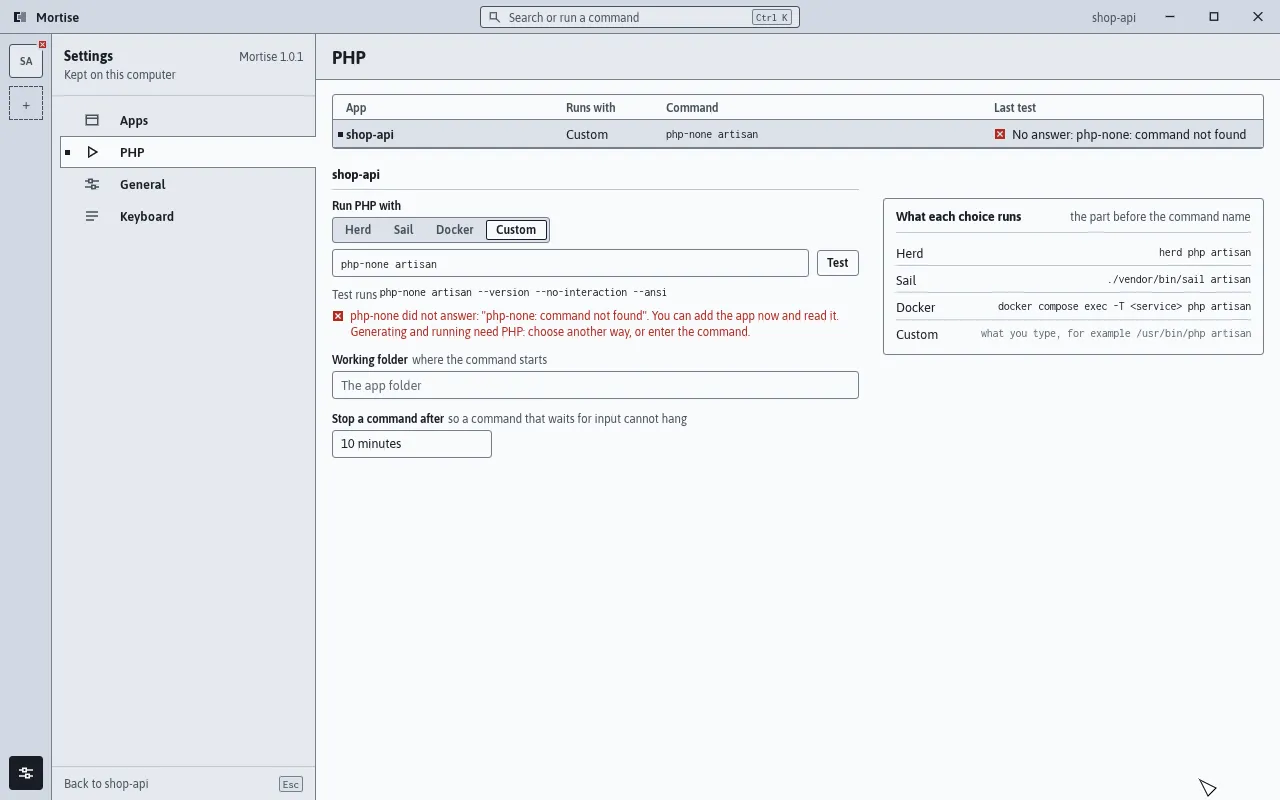
When the test works, Answered shows the first line of the answer, and the table shows it under Last test. If PHP did not answer, the sentence under the field says why. Choose another way, or correct the command, then press Test again.
Every field is listed in Settings.