
Settings
Settings take the place of the module index and the workspace. The head reads Settings, “Kept on this computer”. Settings has four sections, in this order: Apps, PHP, General and Keyboard. The head also shows the version, such as “Mortise 0.2.0”.
| Keys | Does |
|---|---|
| Ctrl , (Cmd , on macOS) | Opens Settings |
| Esc | Closes Settings |
There is no Save button. A choice applies at once. A text field applies when it loses focus.
Mortise keeps every setting in settings.json, outside the app. A secret goes to the credential
store of the operating system. See Files and folders.
With no app added, the Apps and PHP sections say: “Add the folder of a Laravel app that uses nwidart/laravel-modules. Mortise reads its modules from disk and changes nothing until you run a command.”
A table of the apps, with the columns App, Folder, Versions and Environments. J and K move through the rows. The selected app has its form below the table.
| Field | Holds | Default |
|---|---|---|
| Name | The name every screen shows for the app | The name of the app folder |
| Monogram | The two letters on the tile of the app in the rail | Proposed from the name |
| Folder | The app folder. Shown, not edited | |
Coverage report (hint clover.xml) |
The clover report, relative to the app folder or absolute. coverage.report in mortise.json wins over it |
Empty: Mortise looks in phpunit.xml and the usual places |
| Coverage limit (found in phpunit.xml or the usual places) | A module covered less than this per cent is a warning. coverage.limit in mortise.json wins over it |
50% |
The button Remove <app> from Mortise removes the app from the rail. It does not touch the app folder.
Environments
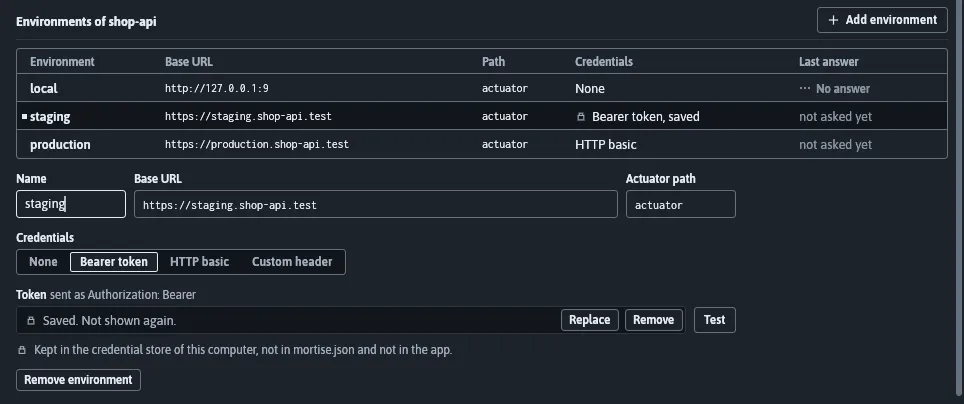
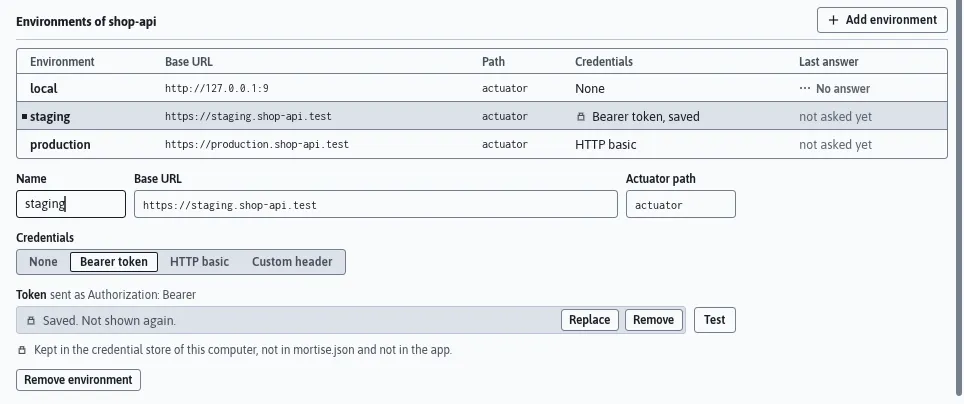
Section titled “Environments”Under the form of an app, Environments of <app> lists the running copies of the app that
Mortise can ask for their runtime status.
- When the app has no
nwidart/laravel-actuatorincomposer.lock, the section says: “Runtime status needs nwidart/laravel-actuator.<app>has no entry for it in composer.lock. Run composer require nwidart/laravel-actuator in the app.” - With no environment, it says: “No environment is connected. Add the URL of a running
<app>to read its runtime status.” and offers Add environment. - The table has the columns Environment, Base URL and Last answer. A wide window also shows Path and Credentials. An environment not asked in this run reads “not asked yet”.
- Remove environment drops one environment and its secret.
The form of an environment:
| Field | Holds | Default |
|---|---|---|
| Name | The name of the environment, such as local, staging or production |
|
| Base URL | The address of the app, such as https://shop-api.test |
From APP_URL in .env (hint “from APP_URL in .env”) |
| Actuator path | The path of the actuator under the base URL | actuator |
| Credentials (what the app’s middleware asks for) | One of the four kinds below | None |
Test asks the environment and shows its answer under the form, for example
“Exposed: health, info, mappings, scheduledtasks.” or “<url> answered 401.”.
Credentials
Section titled “Credentials”| Kind | Fields | Sent as |
|---|---|---|
| None | none. “Mortise sends no credentials. Right for a local app whose actuator is open.” | Nothing |
| Bearer token | Token (sent as Authorization: Bearer) | Authorization: Bearer <token> |
| HTTP basic | User name, Password | Authorization: Basic <base64 of user:password> |
| Custom header | Header name, Header value | <Header name>: <Header value> |


- The user name and the header name are kept in
settings.json. They are not secrets. - The token, the password and the header value are secrets. They go to the credential store of the operating system. The form says “Kept in the credential store of this computer, not in mortise.json and not in the app.”
- A saved secret reads “Saved. Not shown again.” with Replace and Remove. In the table the kind reads, for example, “Bearer token, saved”.
- When no credential store is running, the form says “No credential store is running on this computer. The secret is kept until Mortise closes.”
How PHP runs for each app. See also How to choose PHP.
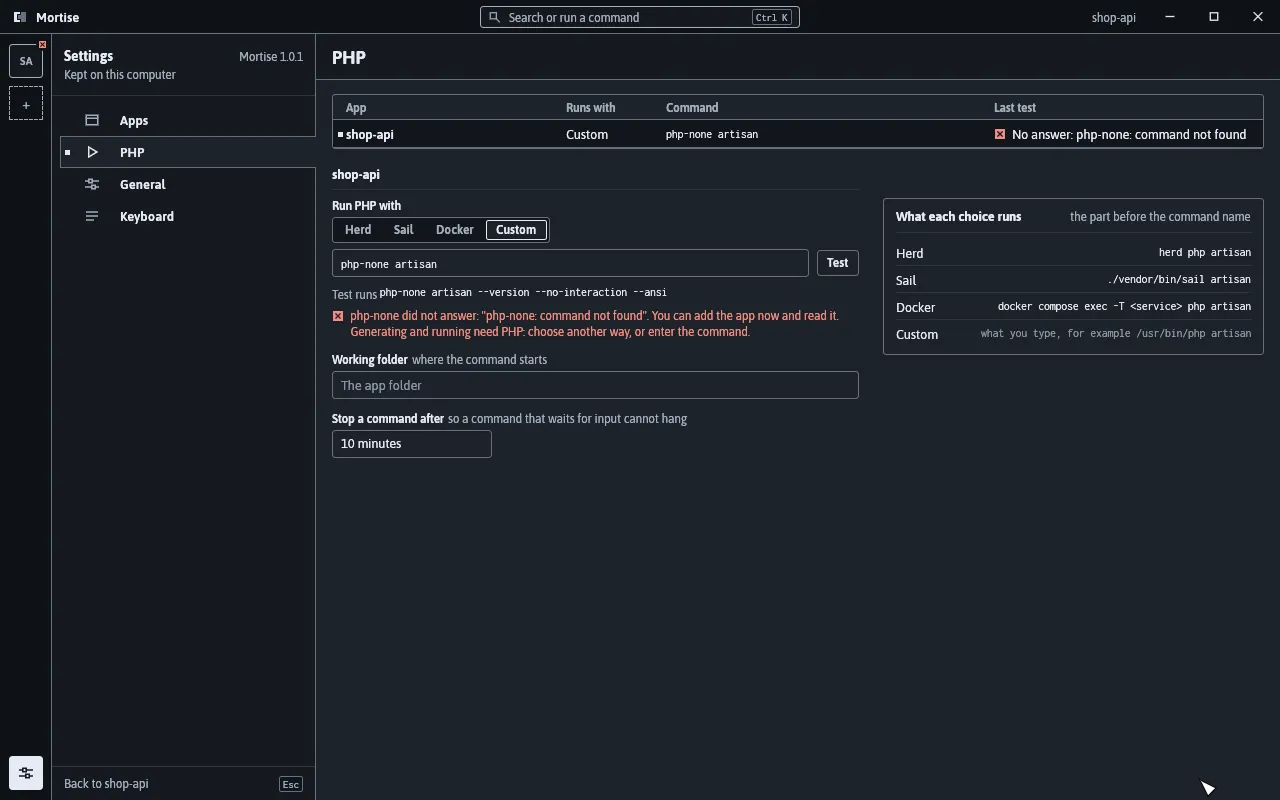
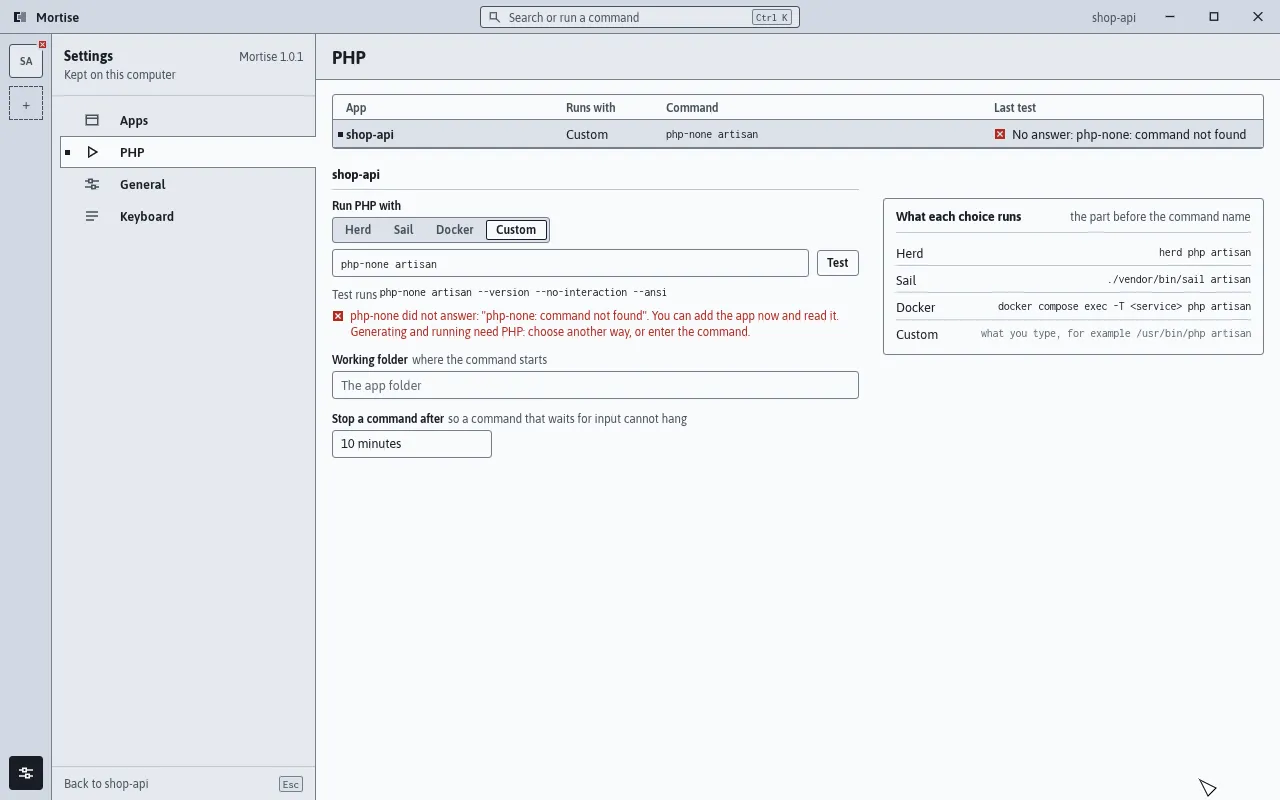
A table of the apps, with the columns App, Runs with, Command and Last test.
- An app whose runner is not chosen reads “Not chosen”.
- Last test is kept in memory only. After a restart it reads “Not tested” until you press Test again.
- A failed test reads, for example,
No answer: service "app" is not running.
The form of the selected app:
| Field | Holds | Default |
|---|---|---|
| Run PHP with | Herd, Sail, Docker or Custom, and the command field | Not chosen. Mortise proposes one from the folder |
| Working folder (where the command starts) | A folder, relative to the app folder or absolute | The app folder |
| Stop a command after (so a command that waits for input cannot hang) | Minutes, 1 to 120 | 10 minutes |
Test runs artisan --version through the runner, with the line on screen first (“Test runs …”).
It waits at most 20 s.
The hint under Run PHP with says what Mortise found in the folder: “Found: this folder is a Herd site.”, “Found: vendor/bin/sail and a compose file.”, “Found: a compose file.” or “Not found: Herd, Sail, a compose file.”
What each choice runs
Section titled “What each choice runs”The part before the command name:
| Choice | macOS and Linux | Windows |
|---|---|---|
| Herd | herd php artisan |
herd.bat php artisan |
| Sail | ./vendor/bin/sail artisan |
Off, with the tooltip “Sail runs in WSL, not on Windows itself” |
| Docker | docker compose exec -T <service> php artisan |
Same |
| Custom | What you type, for example /usr/bin/php artisan |
Same |
Typing the words of Herd, Sail or Docker in the command field selects that choice. Any other text is Custom.
General
Section titled “General”What applies to Mortise as a whole.
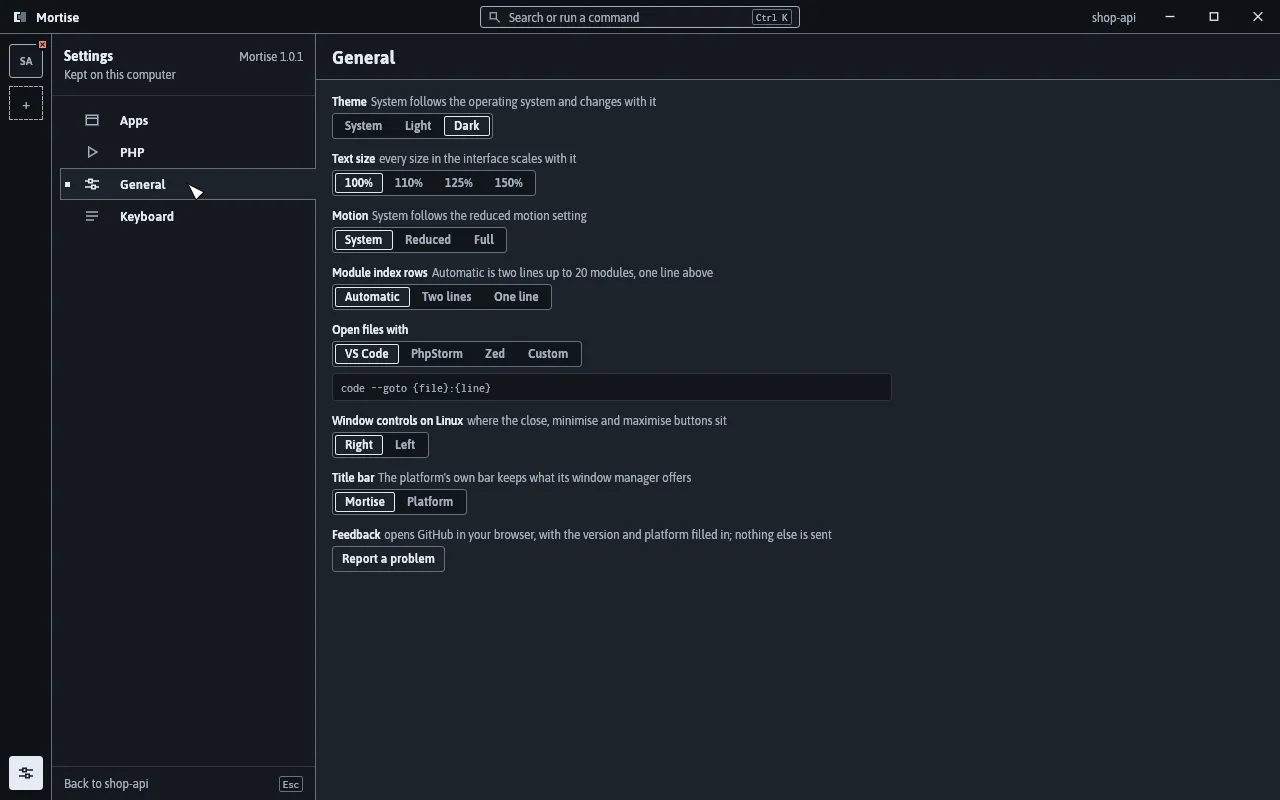
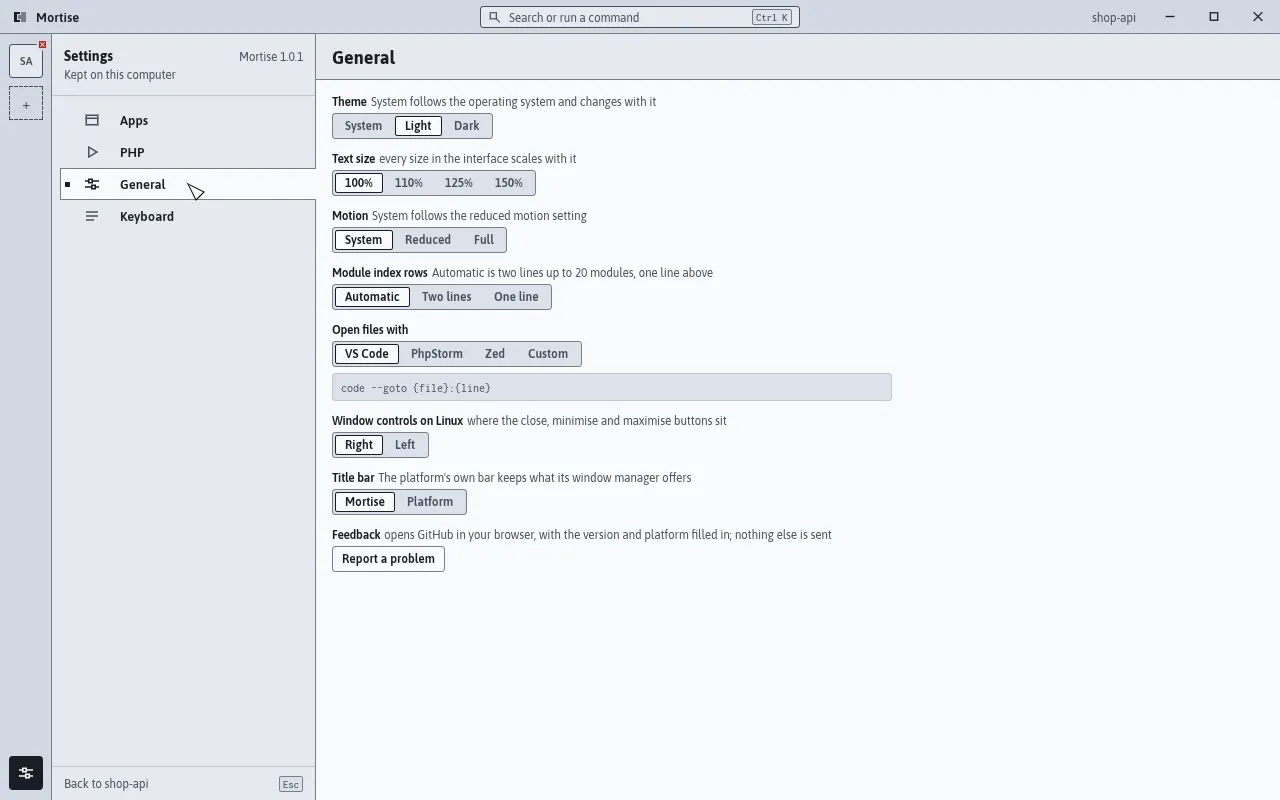
| Field | Choices | Default | Hint |
|---|---|---|---|
| Theme | System, Light, Dark | System | System follows the operating system and changes with it |
| Text size | 100%, 110%, 125%, 150% | 100% | every size in the interface scales with it |
| Motion | System, Reduced, Full | System | System follows the reduced motion setting |
| Module index rows | Automatic, Two lines, One line | Automatic | Automatic is two lines up to 20 modules, one line above |
| Open files with | VS Code, PhpStorm, Zed, Custom | VS Code | |
| Editor command | Shown with Custom only. A command with {file} and {line} |
Empty | |
| Window controls on Linux | Right, Left | Right | where the close, minimise and maximise buttons sit |
| Title bar | Mortise, Platform | Mortise | The platform’s own bar keeps what its window manager offers |
| Feedback | The button Report a problem | opens GitHub in your browser, with the version and platform filled in; nothing else is sent |
Report a problem opens the problem form on GitHub in your browser. The address holds the Mortise version and the platform, and nothing of your apps. See Report a problem.
Motion “System” reads the setting of the operating system and follows its changes. On macOS it is “Reduce motion”. On Windows it is “Animation effects” under Accessibility, Visual effects. On Linux it comes from the desktop portal: its “reduced motion” key, or GNOME’s “enable animations”. A Linux desktop without a portal, or with neither key, gets full motion.
The commands of the editors:
| Editor | Command |
|---|---|
| VS Code | code --goto {file}:{line} |
| PhpStorm | phpstorm --line {line} {file} |
| Zed | zed {file}:{line} |
Window controls on Linux and Title bar show on Windows and Linux only, where Mortise draws the window controls. On macOS the system draws its own buttons.
Keyboard
Section titled “Keyboard”A table of every shortcut, with the columns Does, Keys and Where. Find a shortcut filters it, and the count reads, for example, “3 of 12 shown.” The note says: “On macOS Ctrl is Cmd. Shortcuts are fixed in this version.”
The full list is in Keyboard shortcuts.