
Your first app
In this tutorial we explore one of your Laravel apps in Mortise. We look at its modules and at the links between them. We add a boundary rule and see the finding it raises. Then we run one command of the package and read its output.
It takes about fifteen minutes. Nothing in it changes your code. The only file Mortise writes is
mortise.json, and it asks first.
Before we start
Section titled “Before we start”Follow First steps first. At its end Mortise is installed and one of your apps is open, with at least two modules and a way to run PHP.
Look at the whole app
Section titled “Look at the whole app”-
Look at the module index, the column next to the rail. The first row is All modules. Under it each module has a row with its three-letter code, its files and its coverage. A mark at the right says whether the module has a problem or a warning.
-
Keep All modules selected and look at the Summary tab. The first row counts the modules that are on, the lines of PHP, the test coverage and the findings. Below it are the coverage of each module and a table By module.
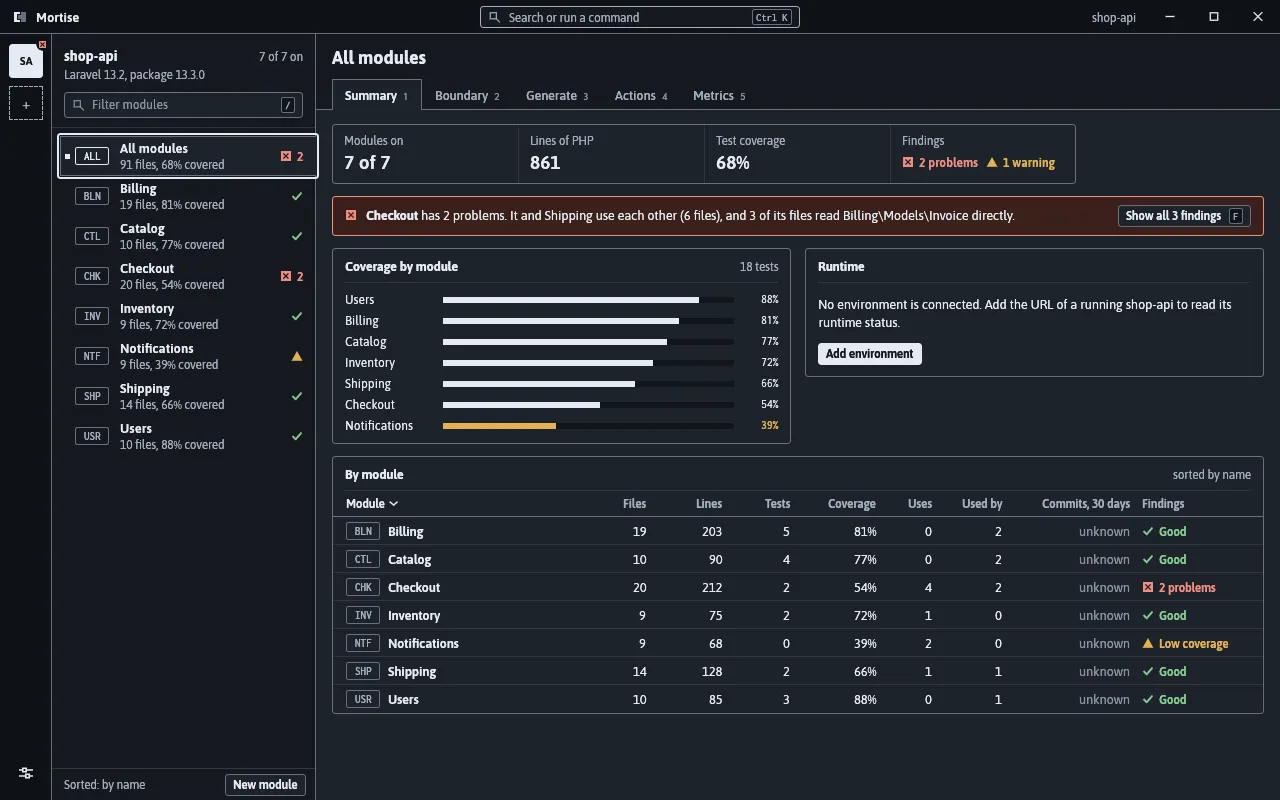
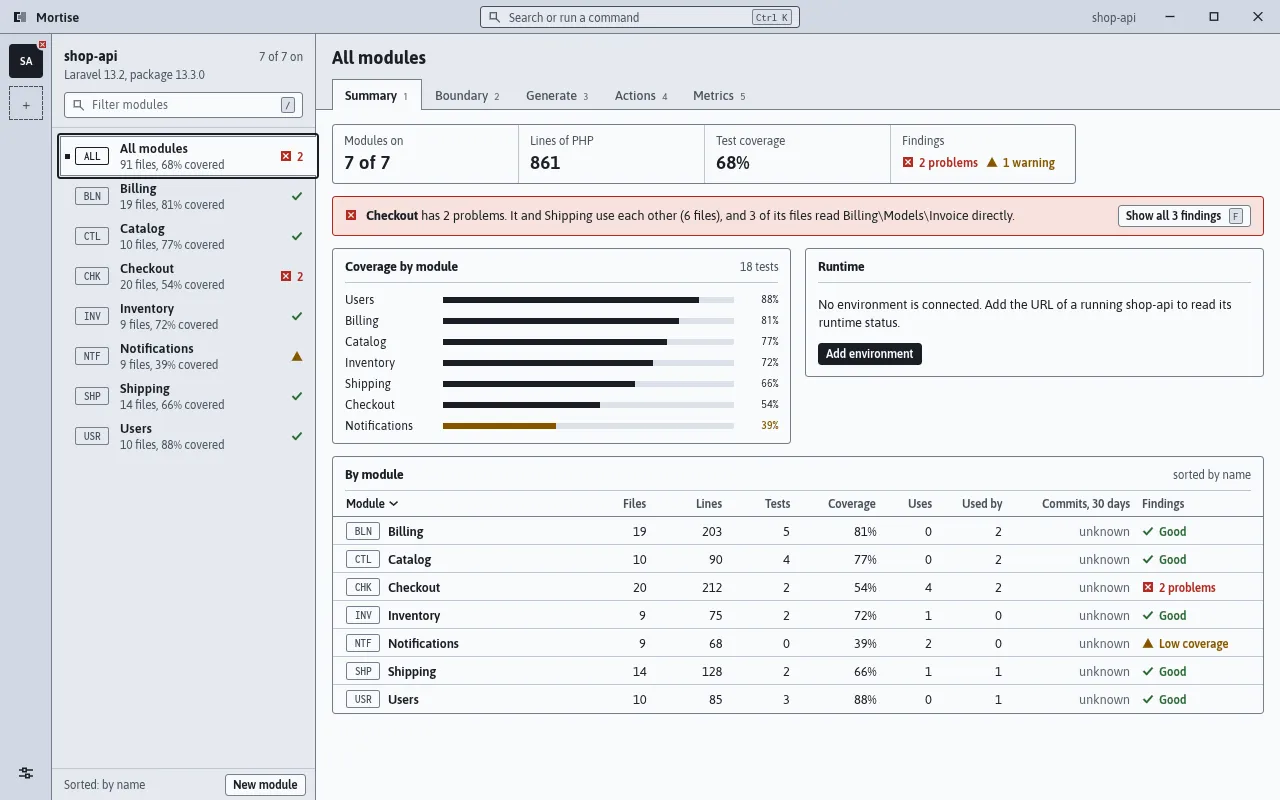
If a module has a problem, a red box names the module and says what is wrong.
Read the links of one module
Section titled “Read the links of one module”-
In the index, select a module that uses another module. The Uses column of the table By module tells you which ones do.
-
Select the Boundary tab, or press 2.
The graph puts the module in the middle. The modules that use it are on the left, under Used by. The modules it uses are on the right, under Uses. Each box counts the references.
-
Select one of the modules on the right. The table under the graph lists each file that makes the link, the line, and the class it reads.
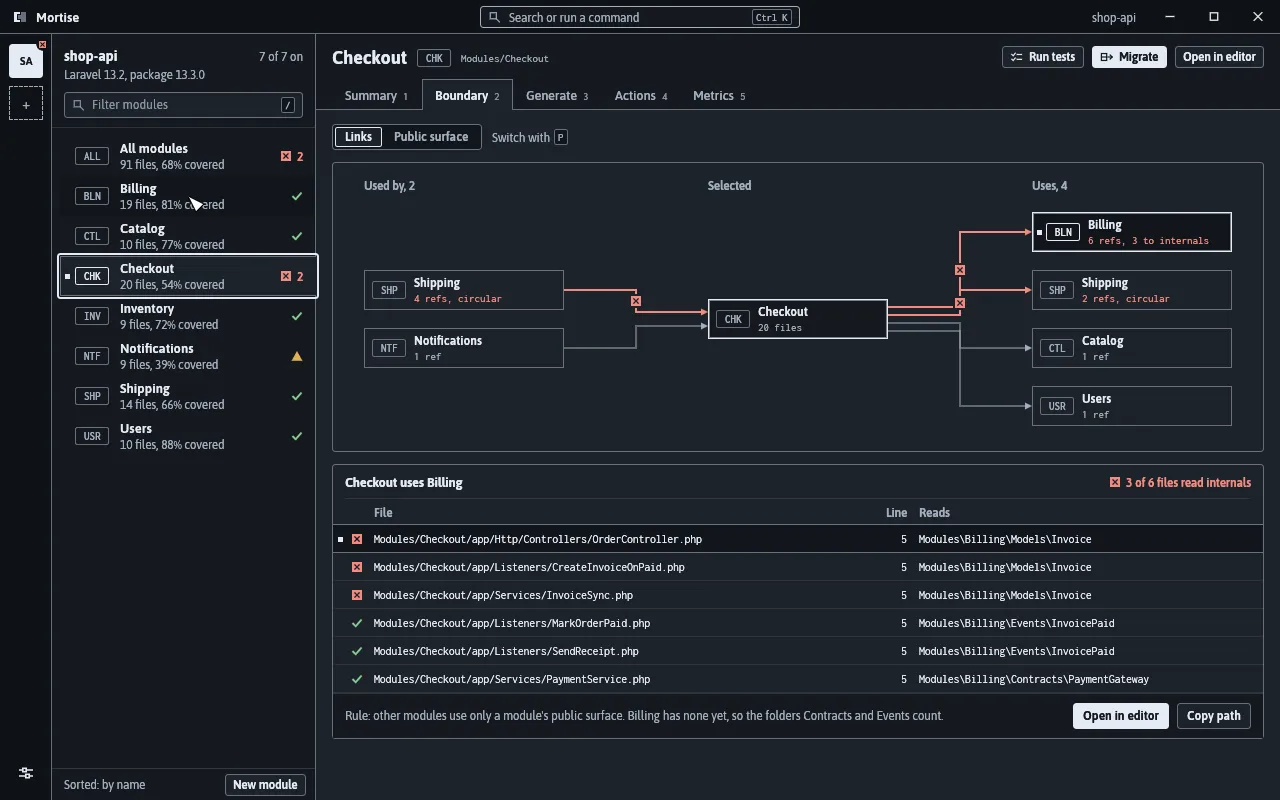
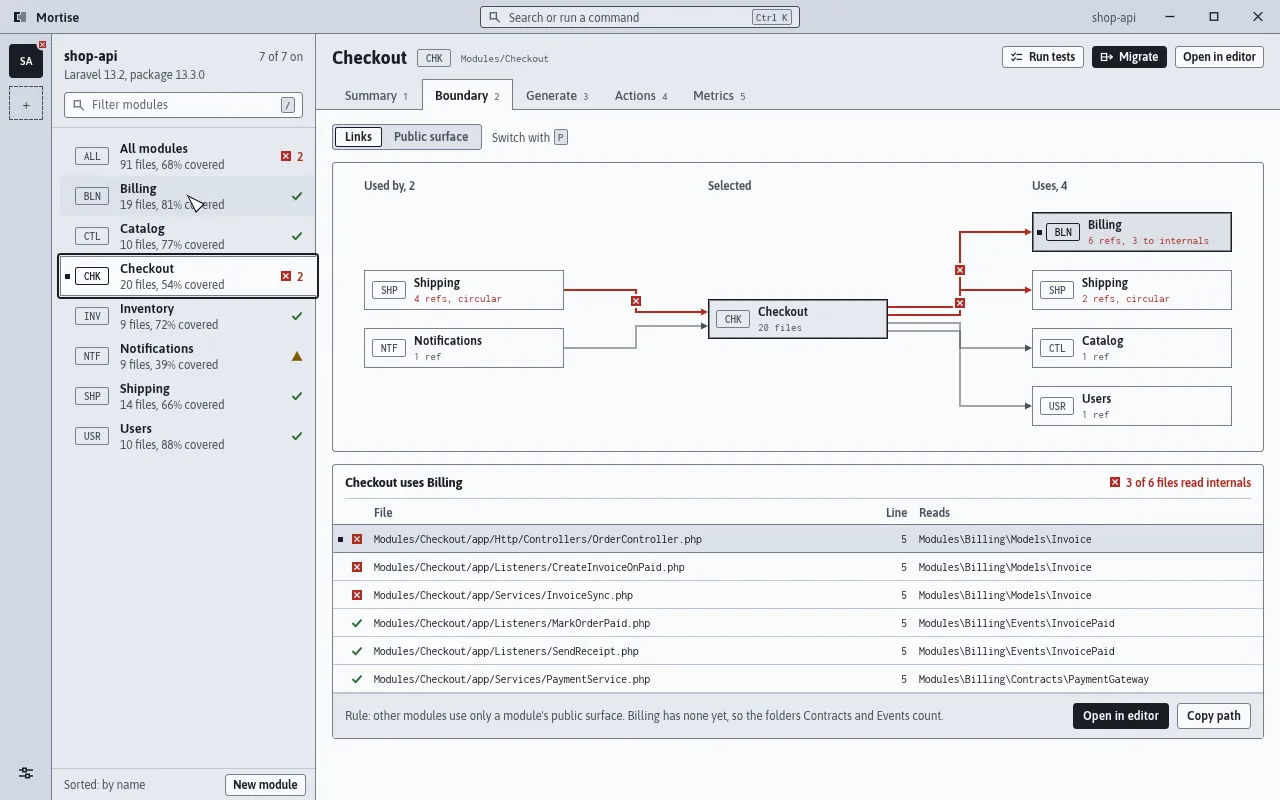
A file marked with a cross reads a class of the other module that is not public. The line under the table names the rule and the folders that count as public.
Add a boundary rule
Section titled “Add a boundary rule”Of the three rules, two apply by default, and the classes in the folders Contracts and Events of a module count
as public. We make the rule stricter: only Contracts counts.
-
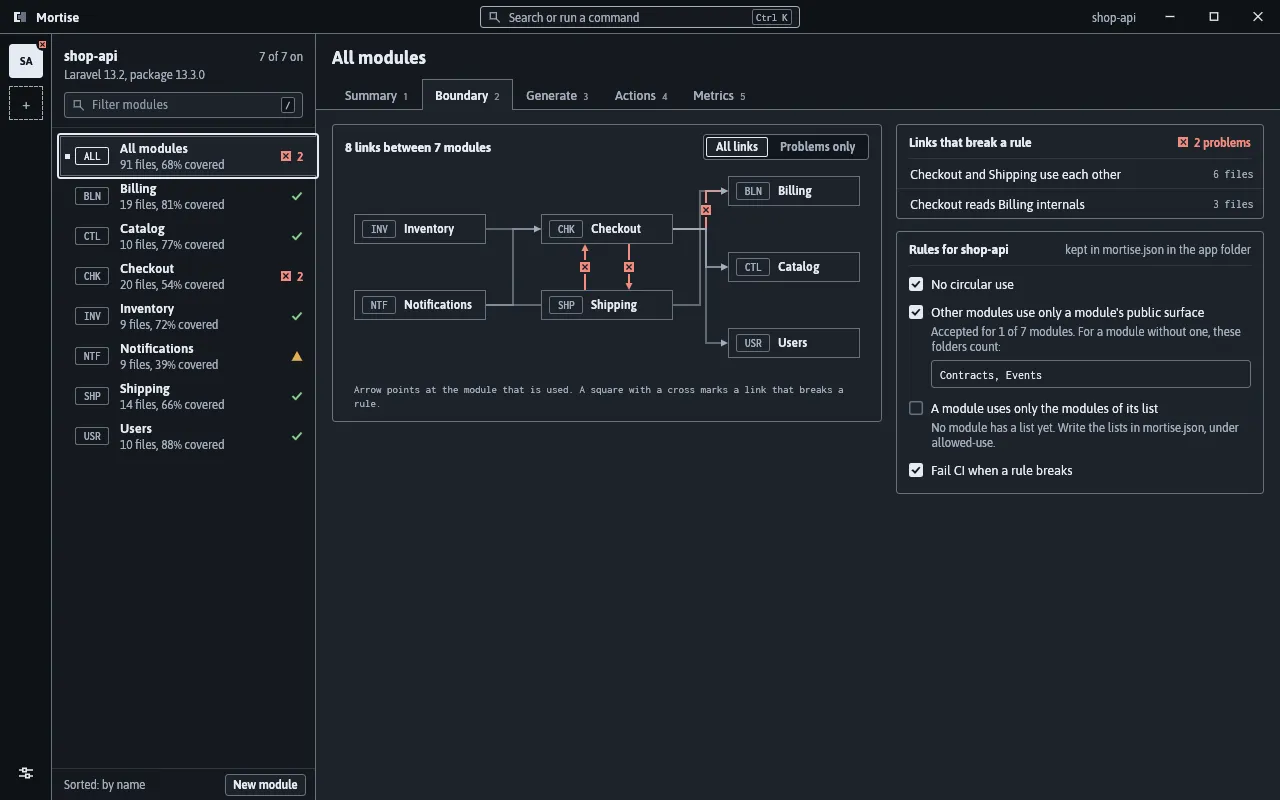
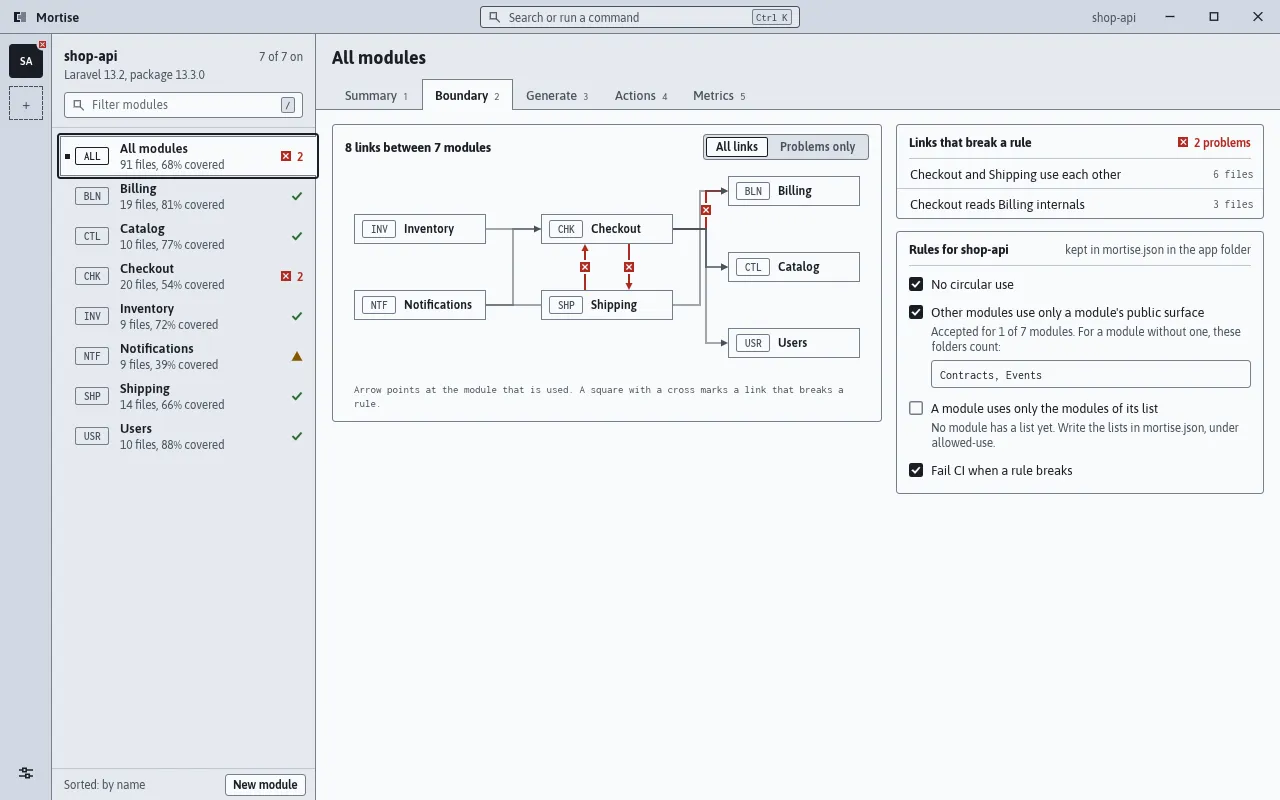
Select All modules in the index. The Boundary tab now shows the graph of the whole app and, on the right, the box Rules for your app.
-
In the field under Other modules use only a module’s public surface, change
Contracts, EventstoContracts. Then press Tab to leave the field. -
Mortise asks before it creates
mortise.json. The dialog reads “Create mortise.json in” and the name of your app. It says that the file keeps the boundary rules, so that a team shares them, and that it is the only file Mortise writes into the app without a command. -
Select Create mortise.json.
Mortise writes mortise.json in the app folder and reads the app again. The rule now treats a class
in Events as internal. Later changes to the rules save to the same file without a question.
See the finding
Section titled “See the finding”-
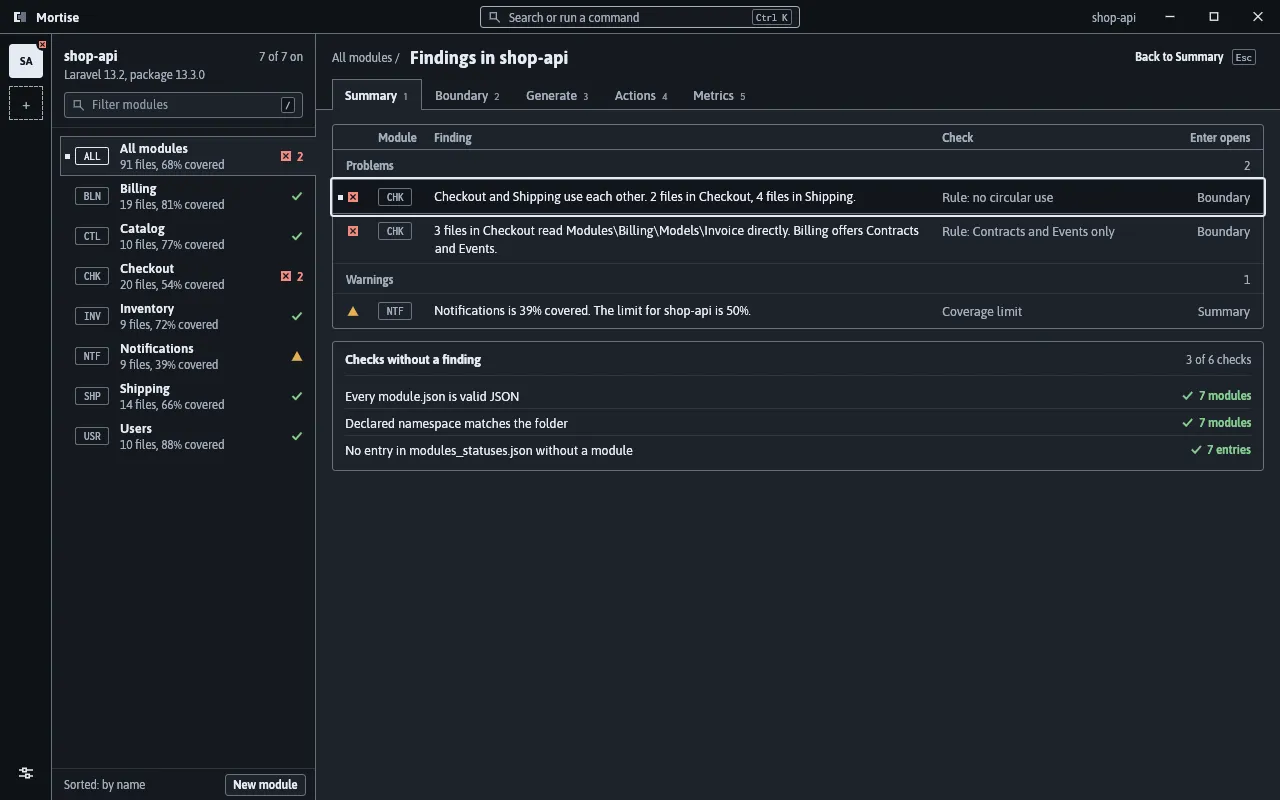
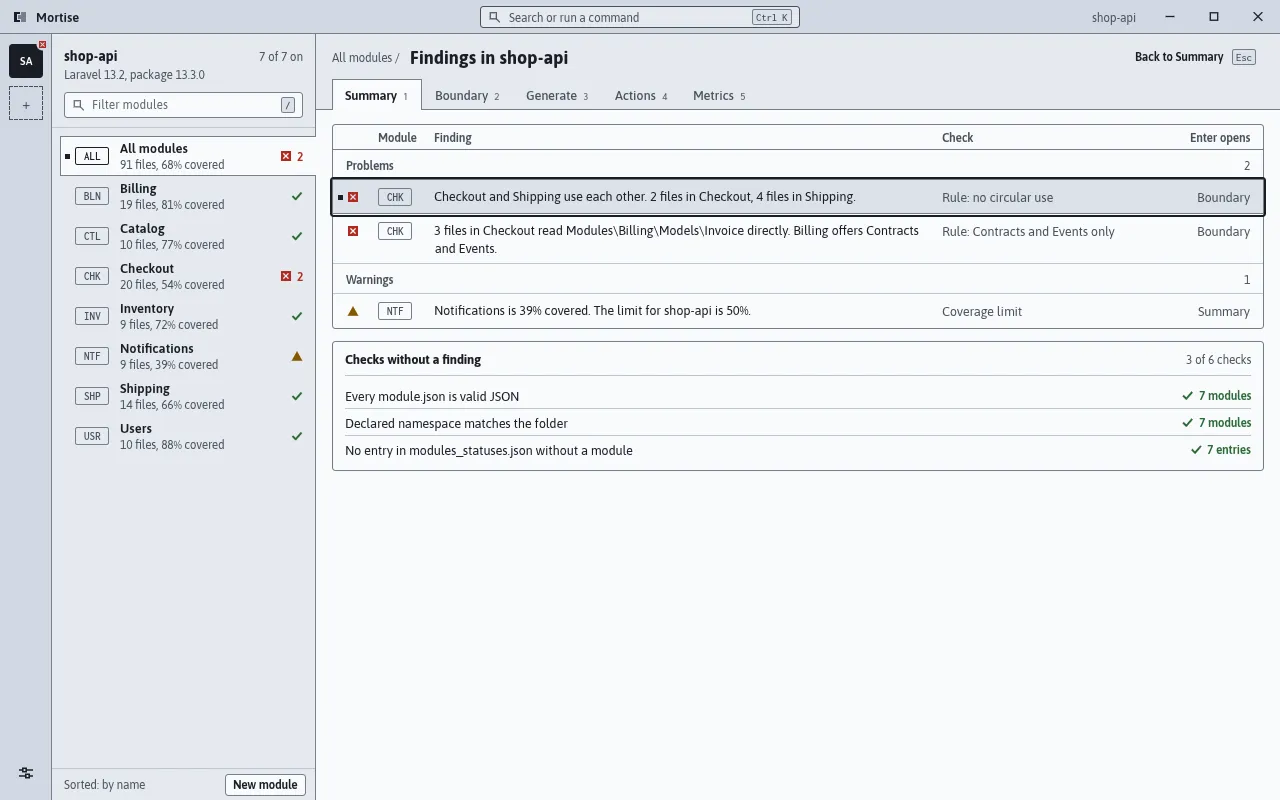
With All modules selected, press F. You can also select the button in the alert of the Summary that reads “Show all” and the number of findings. The list Findings in your app opens.
-
Look at the rows under Problems. If a module reads an
Eventsclass of another module, a row now says how many files read it directly and that the other module offersContracts. Its Check column reads “Rule: Contracts only”.If no module does, the rule shows under Checks without a finding instead.
-
Select a row and press Enter. The Boundary tab opens on that link.
To go back to the default, type Contracts, Events in the field again.
Run one command
Section titled “Run one command”Check translations is a safe command to start with. It reads the language files of a module and changes nothing.
-
Select a module in the index.
-
Select the Actions tab, or press 4.
-
Select the row Check translations. The panel reads “Check translations of” and the module name.
-
Read the line under Command. It is the exact line that runs: the PHP you chose, then
artisan module:lang --no-interaction --ansiand the name of the module. -
Select Check translations, or press Cmd Enter on macOS (Ctrl Enter on Windows and Linux).
The runner drawer opens at the bottom of the window. Its header reads Runner and the artisan words.
The line that starts with $ is the command that ran. The output follows, as the command wrote it.
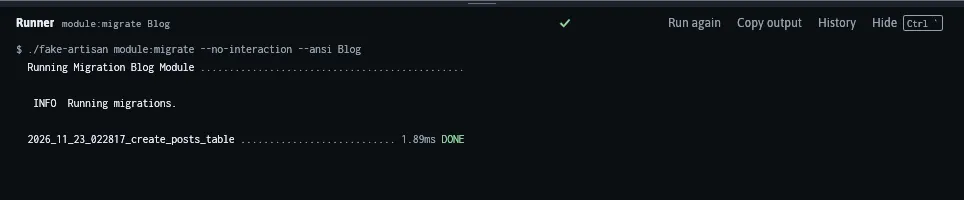
A check mark in the header means the command ended with exit code 0. Hide closes the drawer;
Ctrl ` opens it again. With nwidart/laravel-modules 13.4 or later, the missing
keys also show as warnings in Findings.
What we did
Section titled “What we did”We added an app, read its modules and the links between them, and made a boundary rule stricter.
Mortise wrote mortise.json after it asked. We saw the finding the rule raised, then ran one command
with the line on screen first.