
Use the command palette
The command palette finds modules, actions, generators, findings, apps and commands of Mortise. A row that runs a command opens its panel or its form first. The command runs from there, so you need to have chosen the PHP for the app.
Open and close the palette
Section titled “Open and close the palette”Press Ctrl K (Cmd K on macOS) from anywhere, or click the entry in the middle of the title bar. Press Esc or the same key again to close it.
Run an action or a generator of a module
Section titled “Run an action or a generator of a module”-
Open the palette.
-
Type part of the module name and a word of what you want, such as
checkout migrateorbil model. Letters only need to come in order:mm bilfindsmodule:make-modelin Billing. -
Press Up or Down to move to the row.
- Rows under “Actions for Checkout”, such as “Migrate Checkout”, show the hint Action.
- Rows under Generators, such as “Generate a model in Checkout”, show the hint Form.
-
Press Enter. An action opens the Actions tab on its panel. A generator opens its form.
-
Read the command line, set the options, then press the run button, or Ctrl Enter (Cmd Enter on macOS).
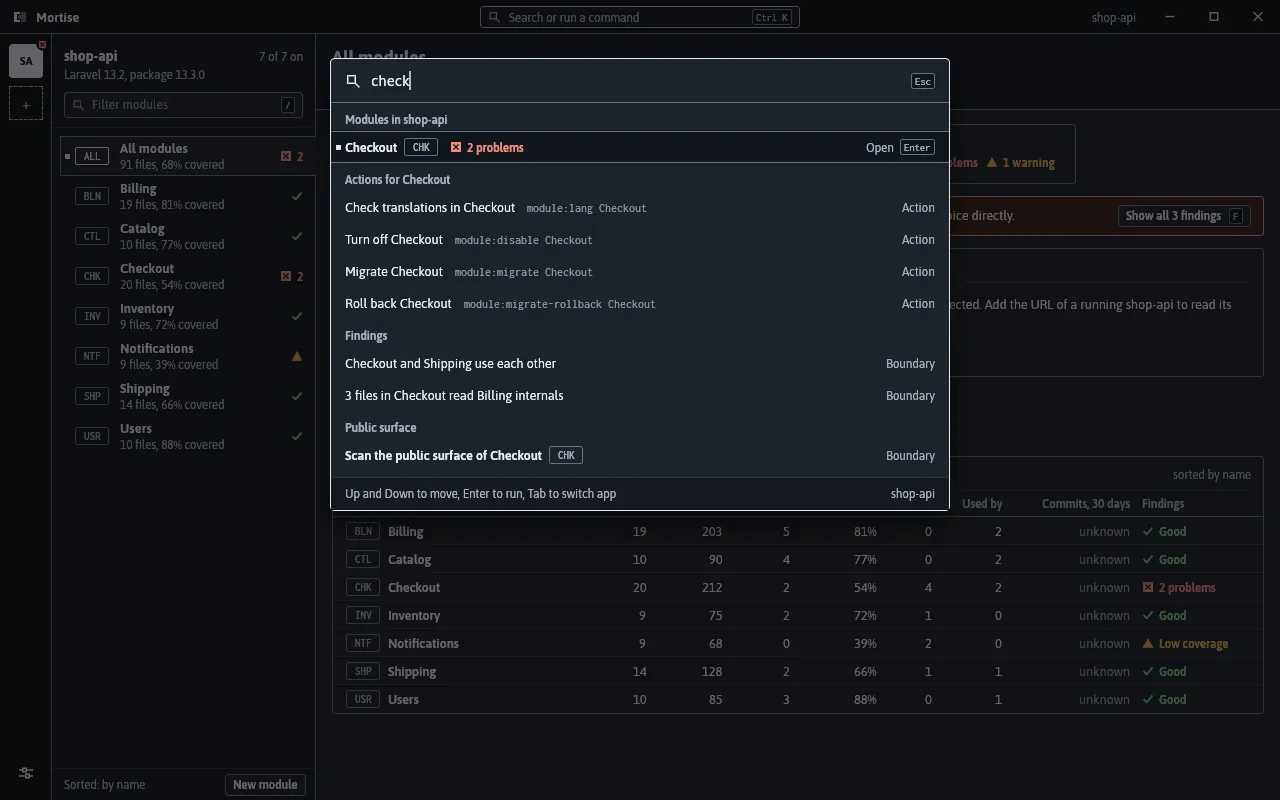
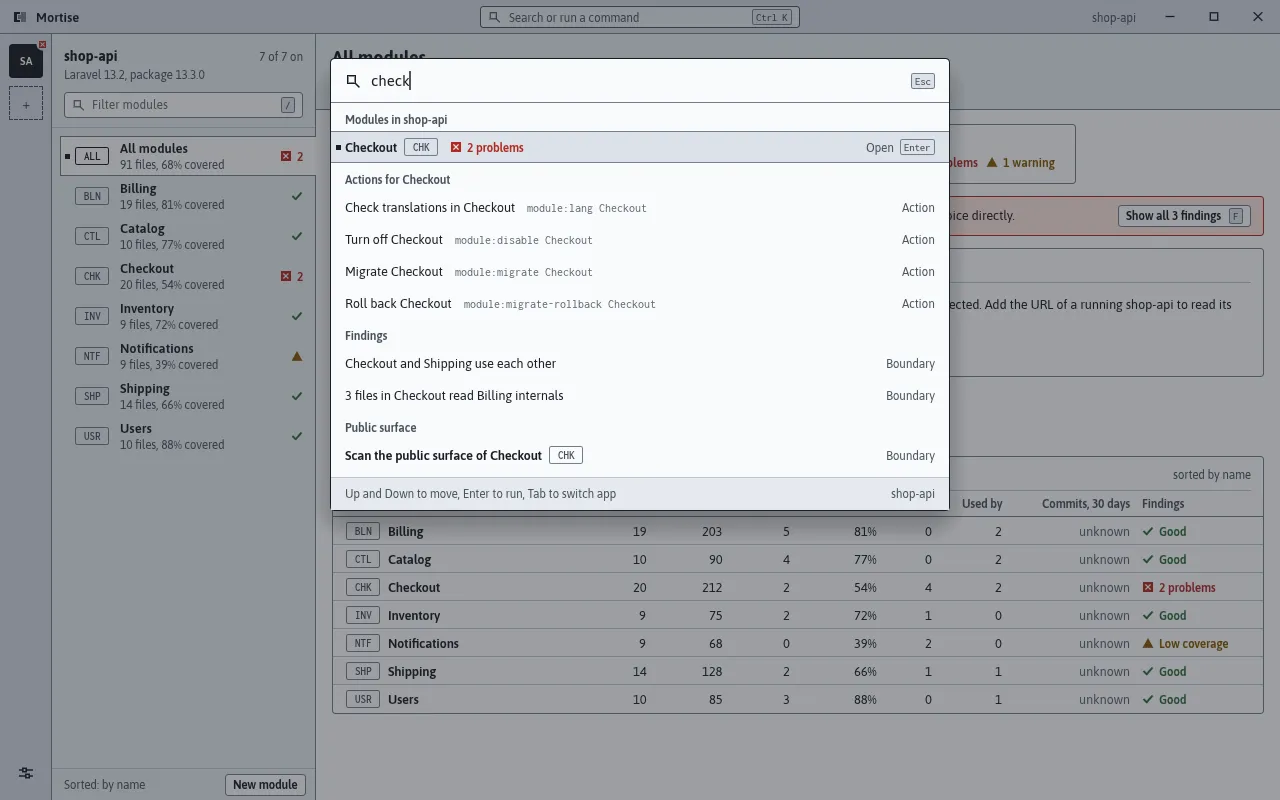
If no module name matches, the palette lists the actions of the module selected in the index. With All modules selected, it lists Actions for all modules.
To search another app, press Tab. The footer names the app the palette searches.
Start a recent run again
Section titled “Start a recent run again”-
Open the palette and leave the query empty.
-
Under Recent, find the action or generator. An action row says when it ran, such as “ran 2 minutes ago”. A generator row shows Form.
-
Press Enter. The panel of the action, or the form of the generator, opens.
-
Check the options and press the run button.
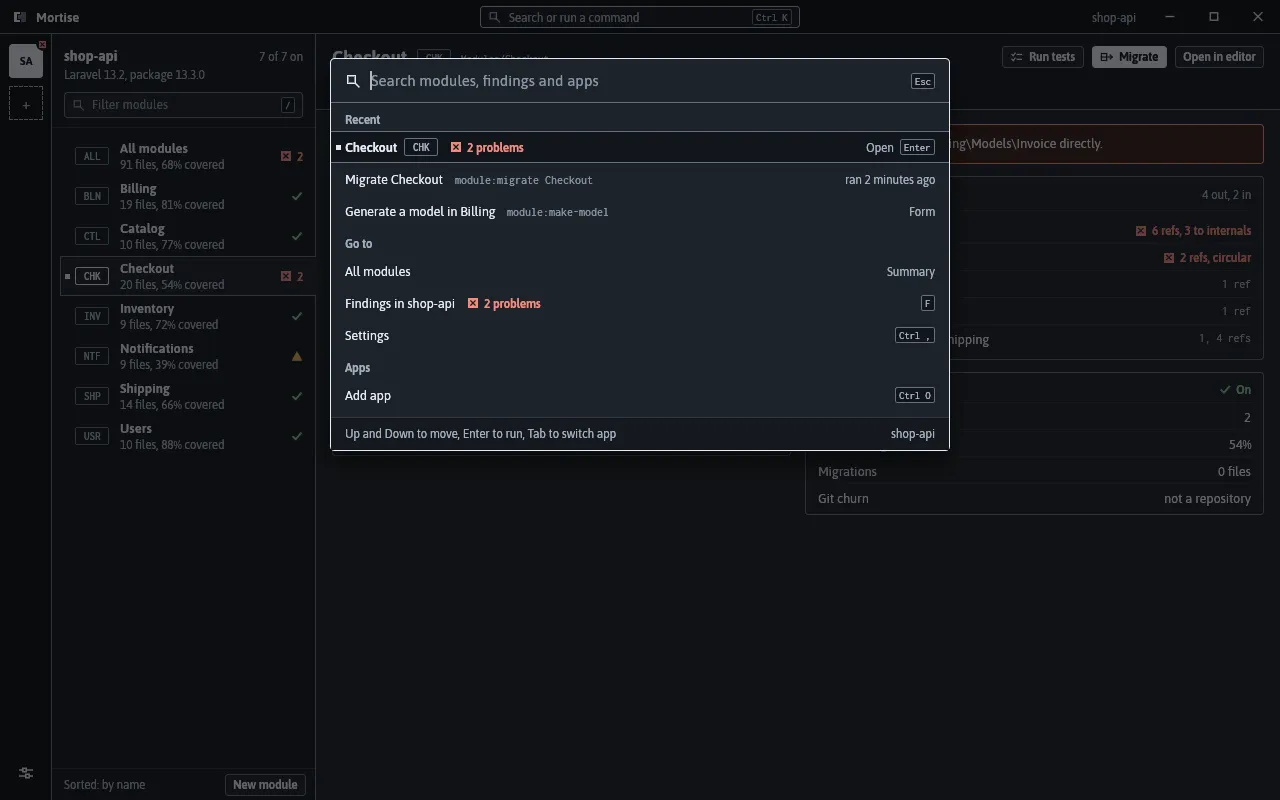
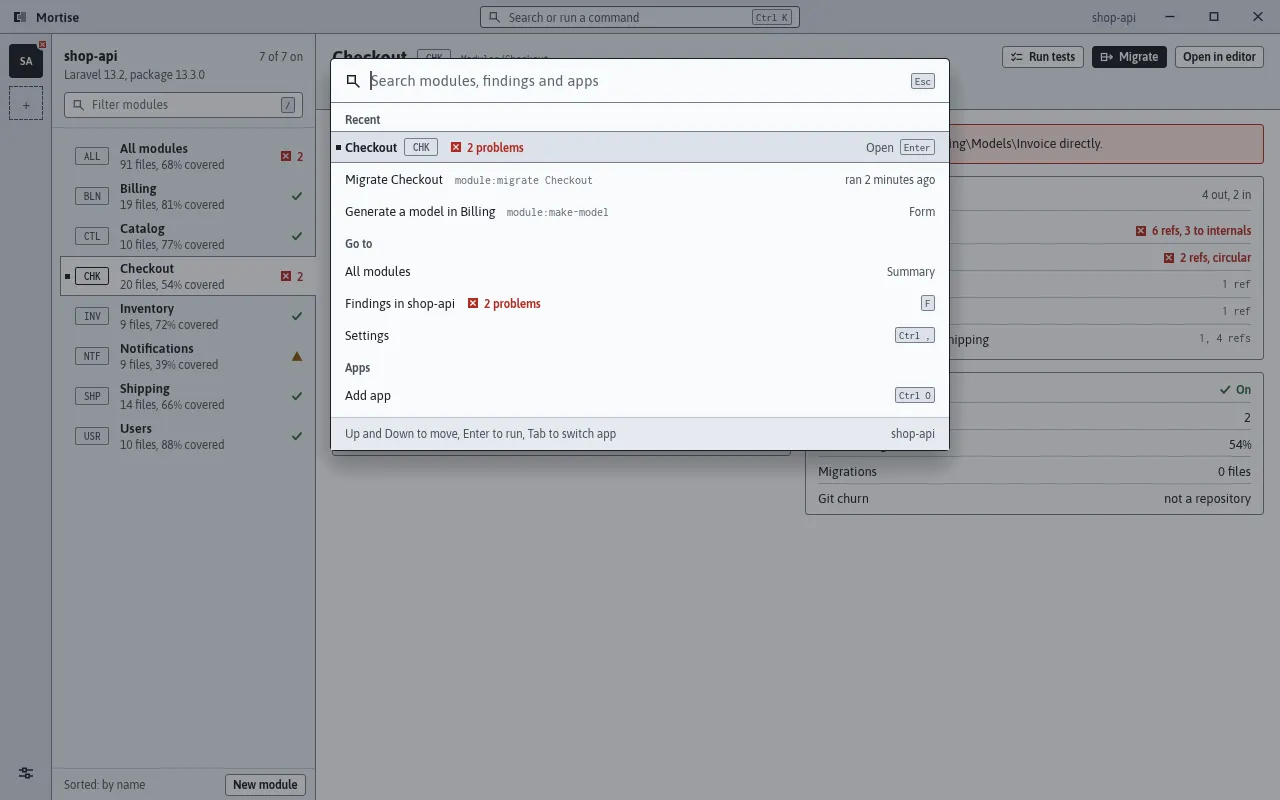
Recent shows up to three actions and generators that ran last in the app, from its history of runs. To run the exact same line again, use the history of the runner drawer instead: see Run a command again from the history.
Find a destructive action
Section titled “Find a destructive action”The palette lists a destructive action only when the query holds its own word:
reset, refresh, fresh or delete.
checkout reset,checkout refreshandcheckout deletefind Reset migrations, Refresh migrations and Delete module of Checkout.freshfinds Drop all tables and migrate, for all modules.refreshdoes not find fresh.
-
Type the module name and the word, such as
checkout delete. The destructive row comes first in its group. -
Press Enter. The Actions tab opens on its panel. Nothing runs yet.
-
Continue as in Run a destructive action. Mortise asks before the command runs.
Every group, row and key is listed in Command palette. All shortcuts are in Keyboard.