First steps
This page takes you from a fresh install to an open app. It ends with a short map of the window.
What you need
Section titled “What you need”- Mortise, installed. See Installation.
- A Laravel app of your own that uses
nwidart/laravel-modules, with at least two modules. The app folder holdsartisanand acomposer.lockthat lists the package. Runcomposer installin it first if you have not. - A way to run PHP in that app: Herd, Sail, Docker or a
phpon your path. Mortise reads the app without PHP, but its commands need it.
Add your app
Section titled “Add your app”-
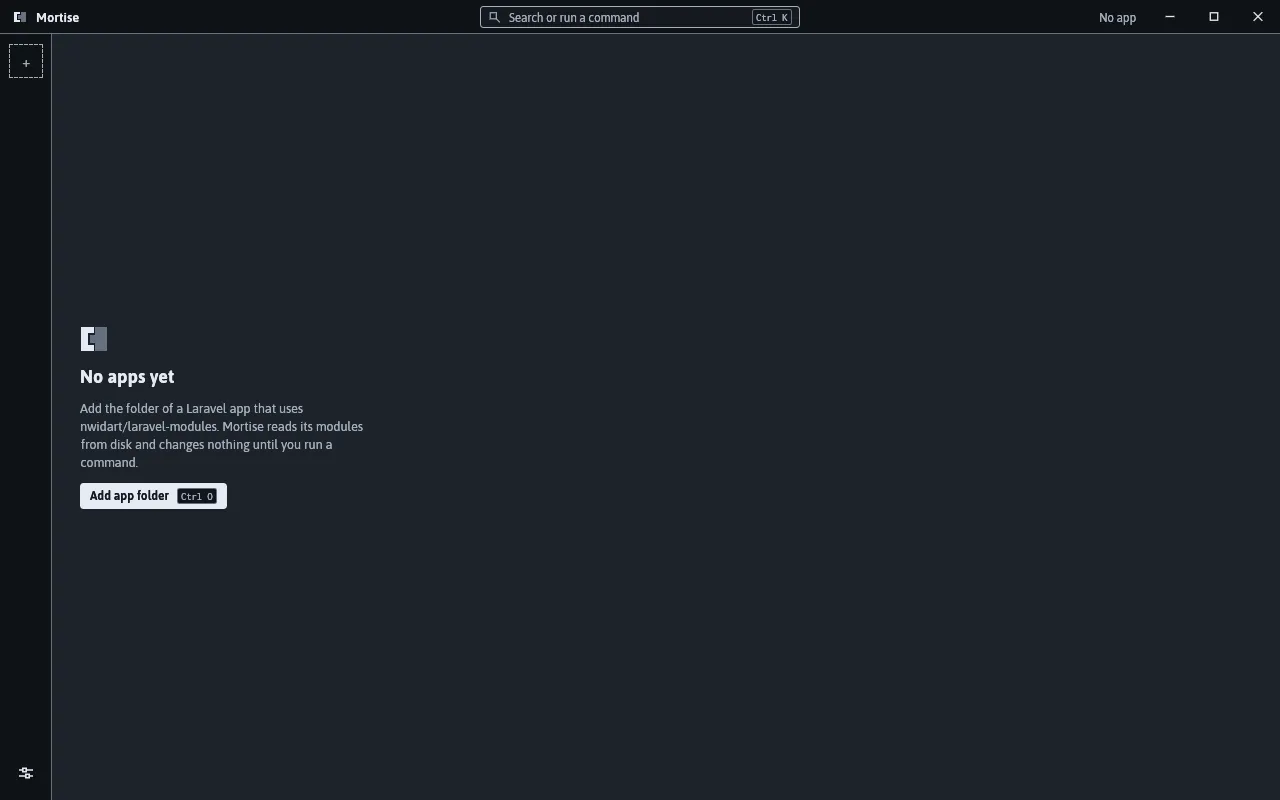
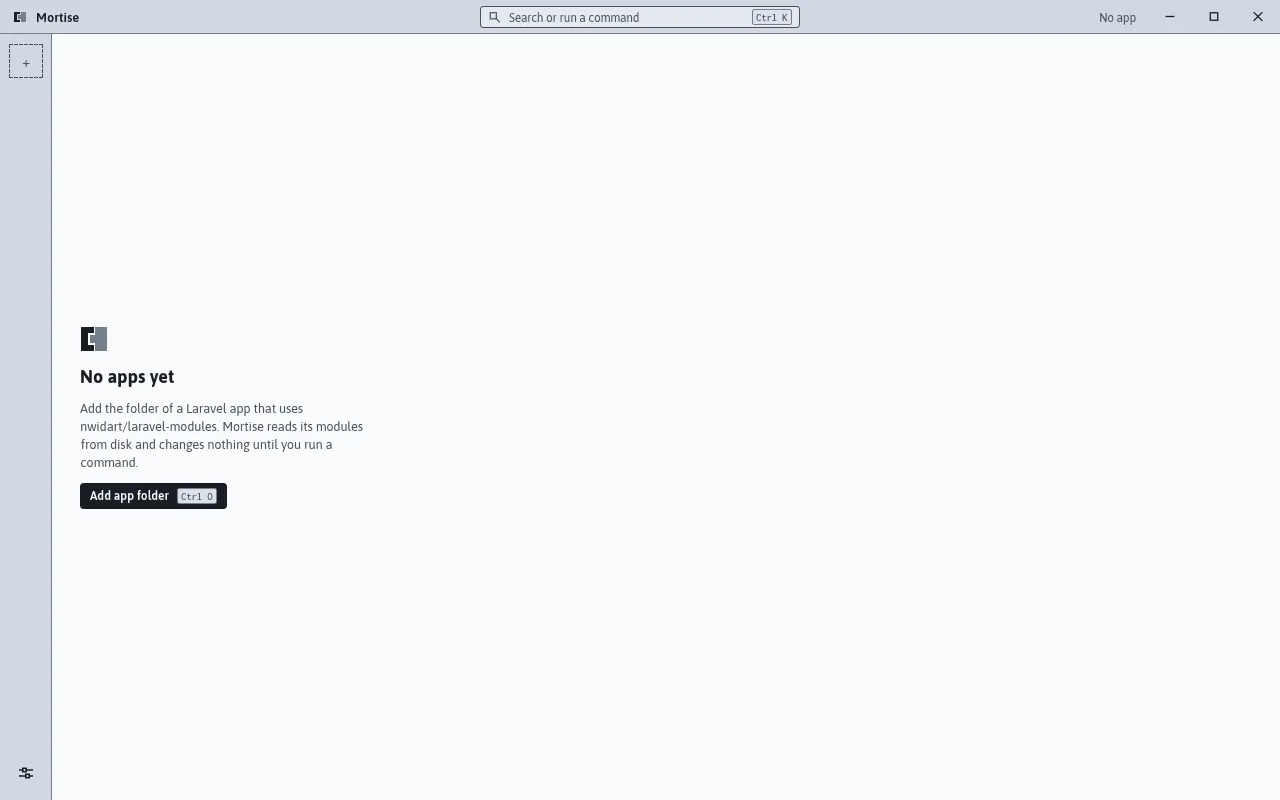
Start Mortise. The window reads No apps yet.
-
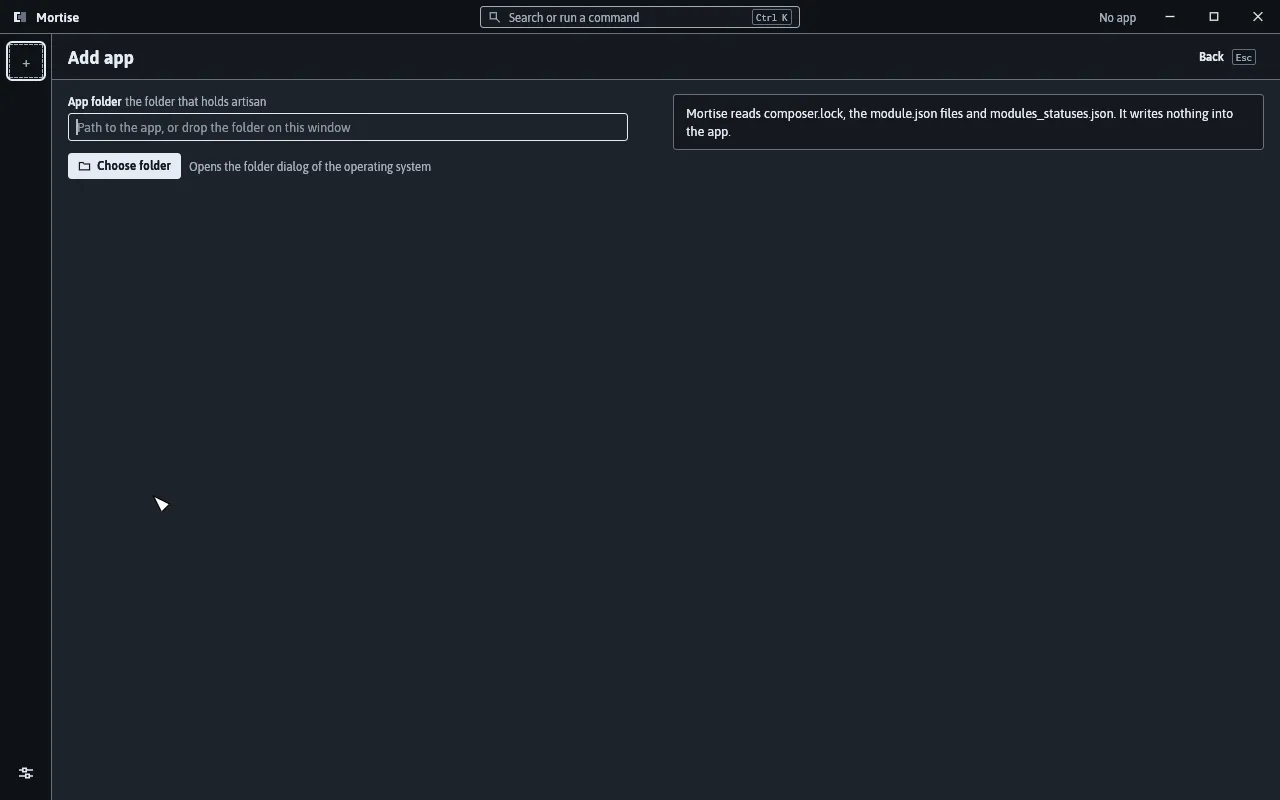
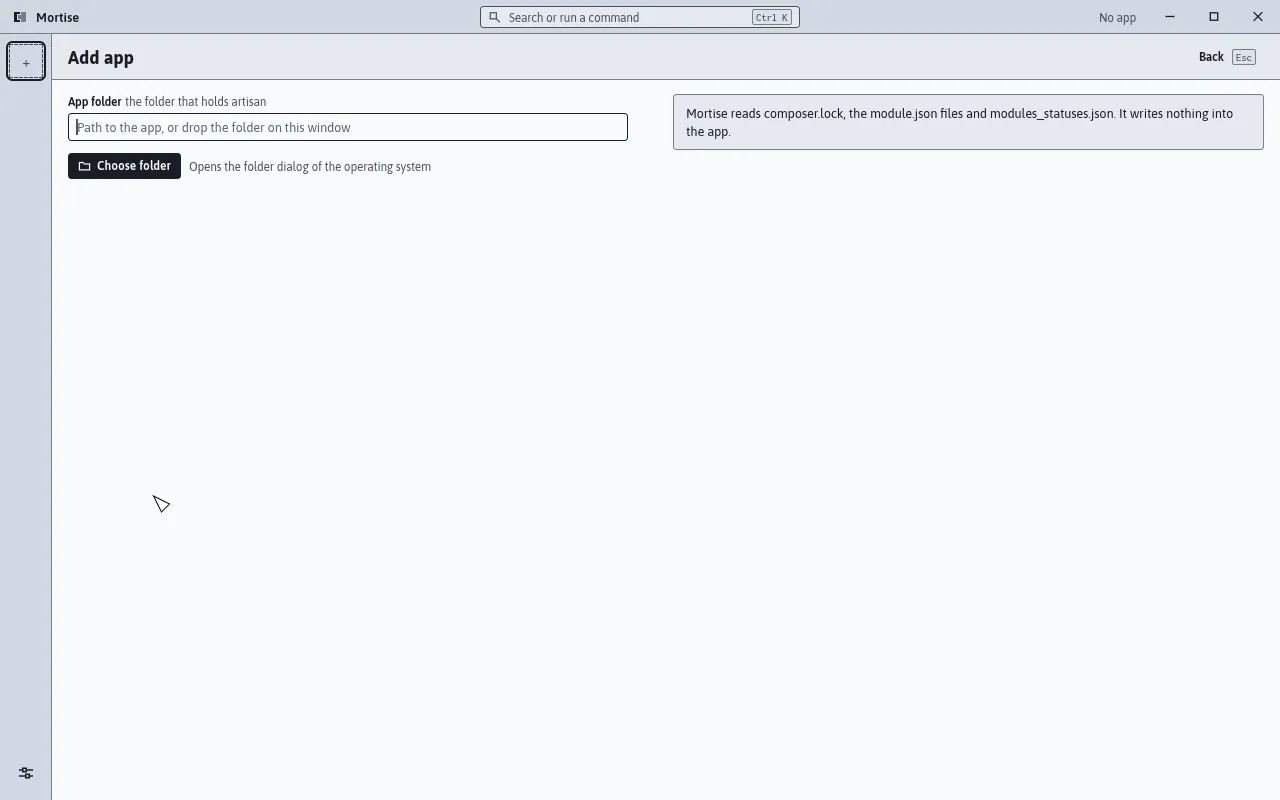
Select Add app folder. The Add app panel opens.
-
Select Choose folder and pick the folder of your app: the one that holds
artisan. You can also type the path into the field and press Enter.Mortise reads the folder. Under Found in this folder it shows the Laravel version, the modules and the git branch. The note says “read from disk, nothing run”.
-
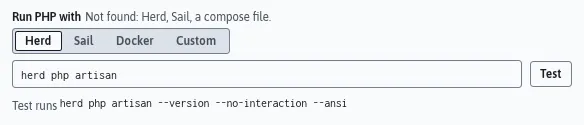
Under Run PHP with, choose how PHP runs for this app: Herd, Sail, Docker or Custom. Mortise proposes one when it finds a Herd site, Sail or a compose file. If you run
phpdirectly, choose Custom; the field then readsphp artisan. -
Select Test. Mortise runs the line under the field,
artisan --version, in the app folder. The answer shows next to Answered. If the test fails, the sentence under it says why; Choose the PHP for an app covers each choice.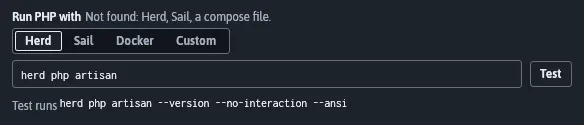
-
Leave Runtime, optional empty for now. Connect the actuator of an app fills it later.
-
Select Add followed by the name of your app, or press Cmd Enter on macOS (Ctrl Enter on Windows and Linux).
A message reads “Added”, the name of the app and the number of modules read. The app gets a tile in the rail on the left.
Find your way around
Section titled “Find your way around”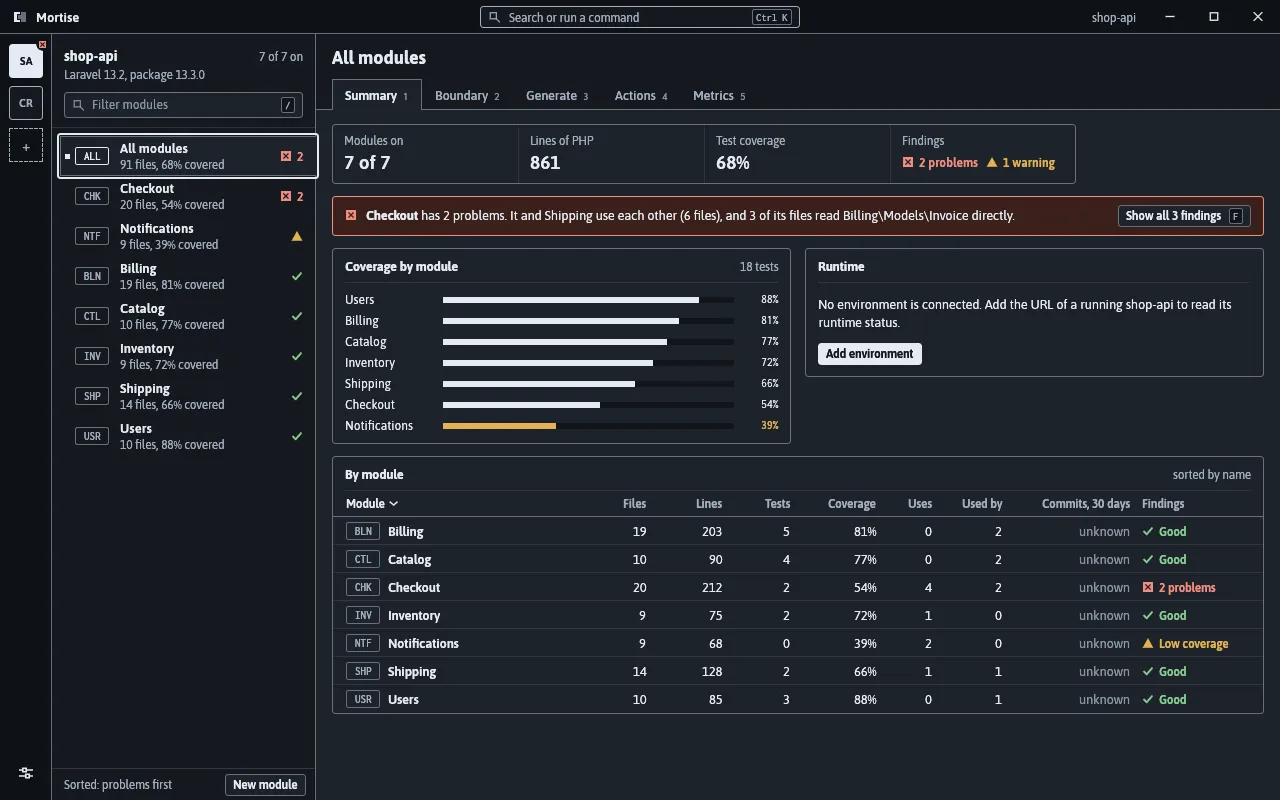
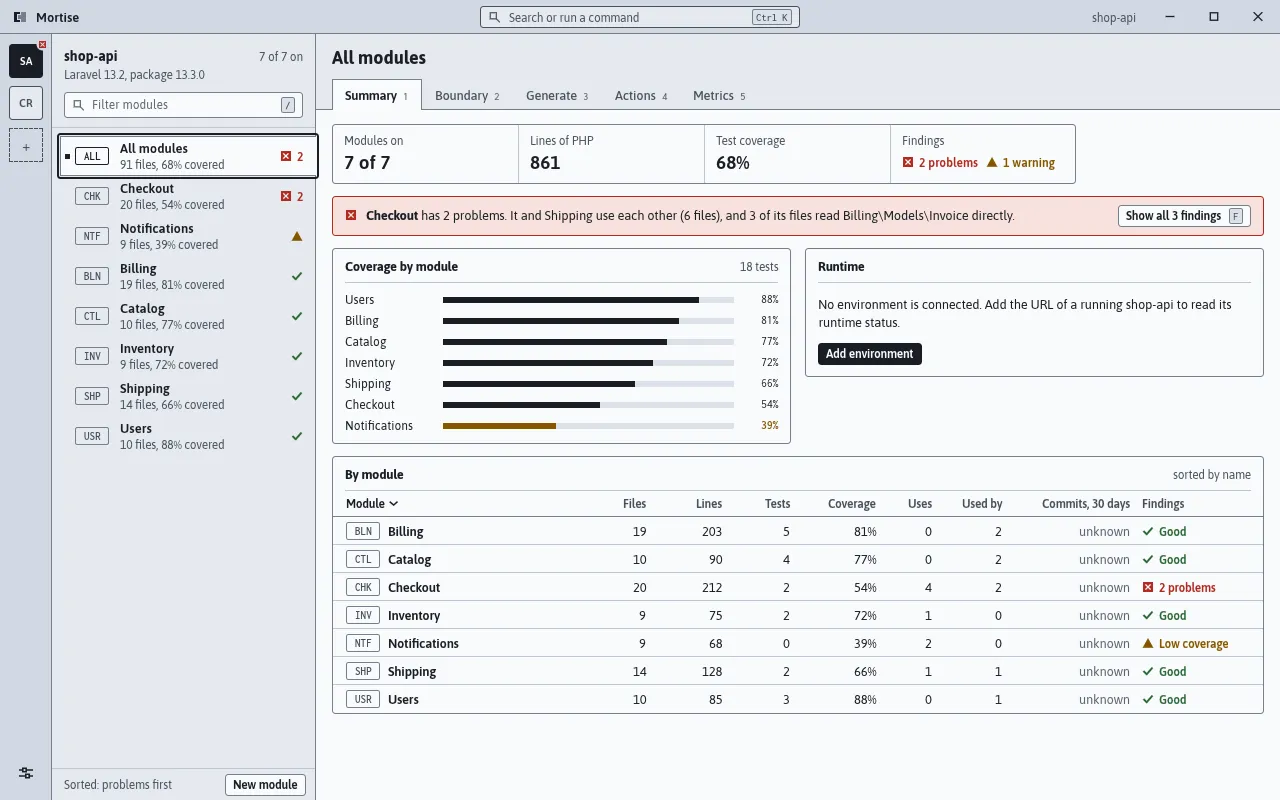
| Part | Where | What it holds |
|---|---|---|
| Title bar | Top | The entry to the command palette, and the name of the open app |
| Rail | Left edge | One tile per app. The tile with a plus, Add app, adds another |
| Module index | Next to the rail | All modules, then one row per module. / filters it |
| Workspace | Middle | The tabs Summary, Boundary, Generate, Actions and Metrics, keys 1 to 5 |
| Runner drawer | Bottom | The output of the command that runs. Ctrl ` shows or hides it |
A few keys help from the start. On macOS use Cmd in place of Ctrl.
| Key | Does |
|---|---|
| Ctrl K | Opens the command palette |
| J K | Selects the next or previous module |
| F | Opens the findings of the app |
| ? | Shows every shortcut |
The window and Keyboard describe each part and each key.
- Learn Mortise step by step in the tutorial.
- Or go to a goal in the how-to guides, such as Add boundary rules to an app.