
Run an action on a module
The Actions tab runs the package’s commands for one module or for all modules. Mortise shows the exact command first. You need to have chosen the PHP for the app. For reset, refresh, drop all tables and delete, see Run a destructive action.
Run an action
Section titled “Run an action”-
Select the module in the module index. For migrate, seed or check translations of every module, select All modules.
-
Open the Actions tab, or press 4.
-
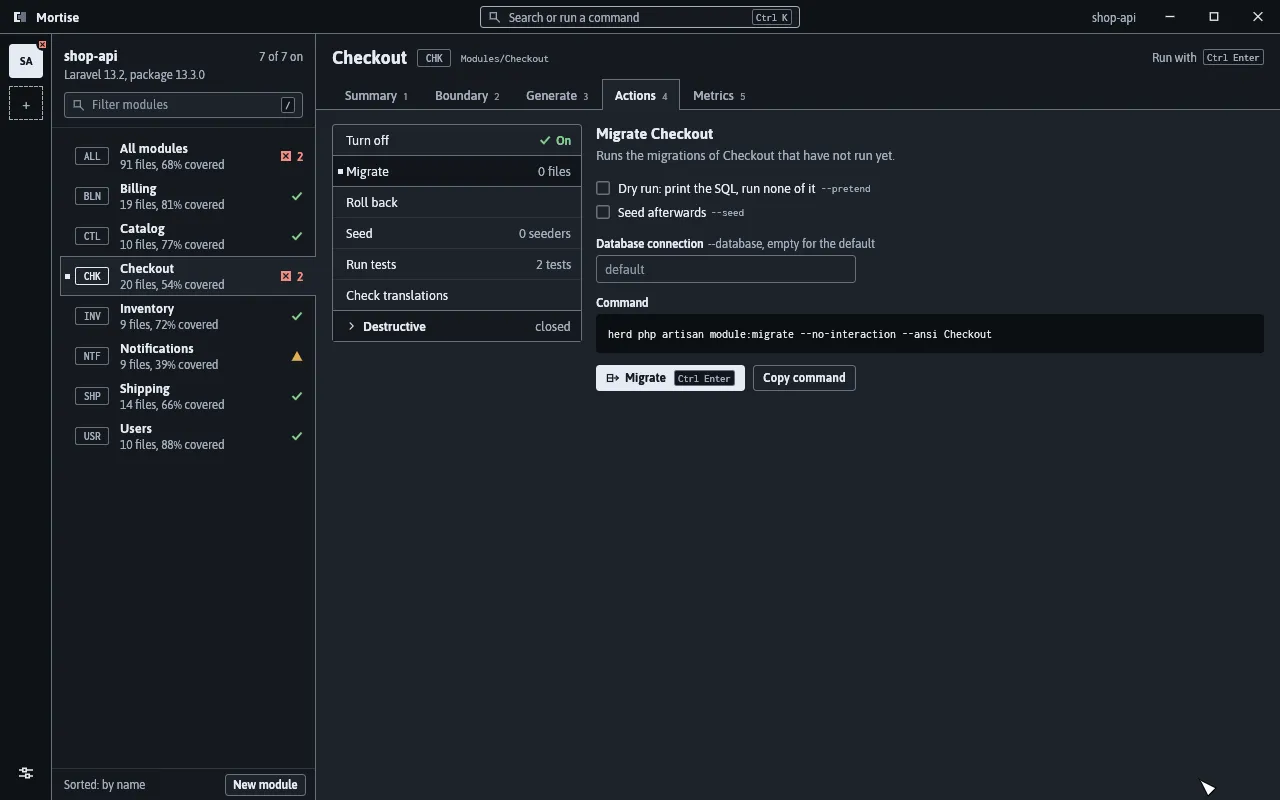
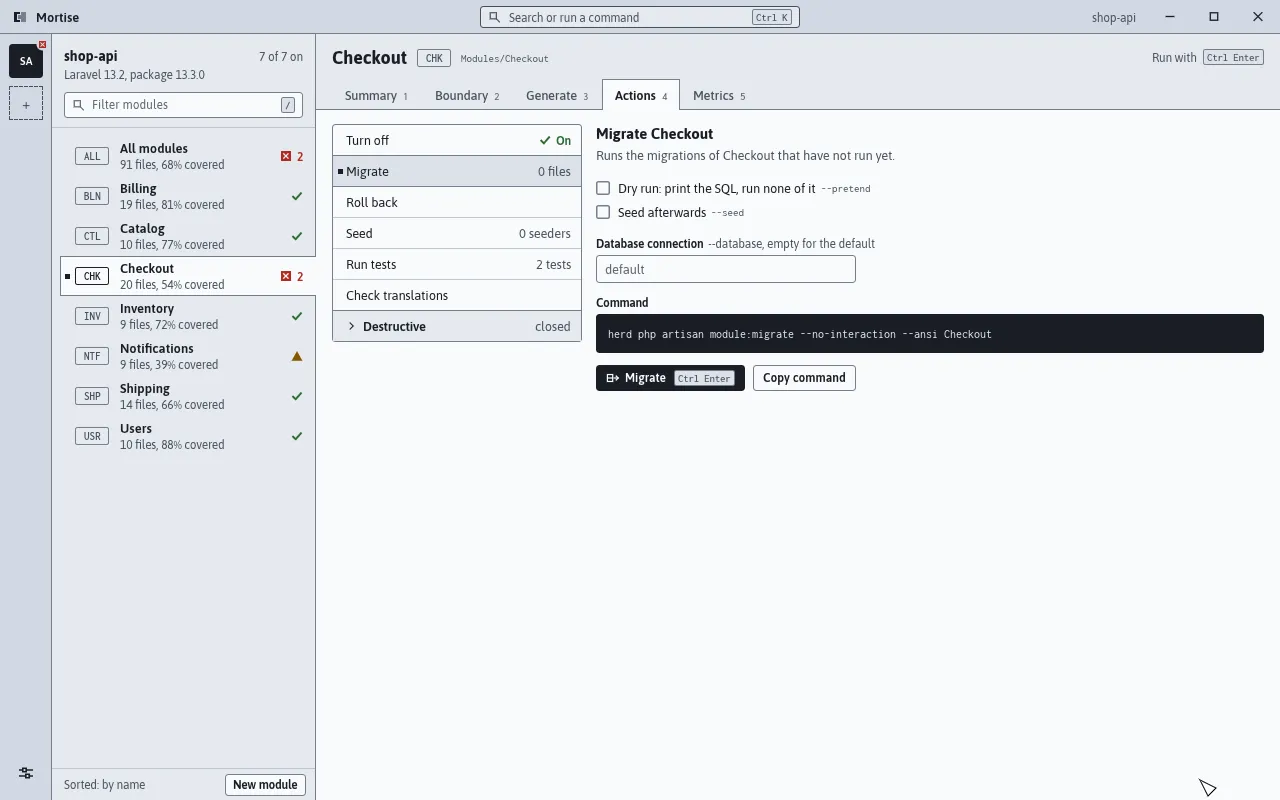
Select the action in the list. The panel at the right says what it does and shows its options.
-
Set the options. Each one adds a flag to the line under Command.
-
Read the line under Command. The run button stays off until the whole line is on screen.
-
Press the button named after the action, or Ctrl Enter (Cmd Enter on macOS). To run the command yourself, press Copy command instead.
The runner drawer shows the output as the command writes it, and a message says how it ended, such as “Migrated Checkout: 2 migrations ran.” To stop a command, press Stop in the runner drawer, or Ctrl ..
Turn a module on or off
Section titled “Turn a module on or off”The first action is Turn off for a module that is on, and Turn on for a module that is off. If modules that are on use the module, turning it off asks first. Press the button Turn off with the module name to confirm. Turning a module on does not run its migrations.
Migrate
Section titled “Migrate”Select Migrate. Check Dry run: print the SQL, run none of it to read the SQL first. Check Seed afterwards to run the seeders after the migrations. For one module, Database connection takes the connection. Empty is the default. The Migrate button in the module header opens this panel too.
Roll back
Section titled “Roll back”Select Roll back. It runs the down method of the last migration batch of the module. Mortise asks first. Press Dry run in the question to read the SQL, or the button Roll back to run it. With the dry run checked, the command changes nothing and runs at once.
Select Seed. Set Database connection and Seeder class if you need others than the defaults. Running a seeder twice can add its rows twice.
Check translations
Section titled “Check translations”Select Check translations. It lists the translation keys that a language of the module lacks. The output shows in the runner.
On nwidart/laravel-modules 13.4 or later, Findings also lists the missing keys.
Read the migration state
Section titled “Read the migration state”This needs nwidart/laravel-modules 13.4 or later.
-
Select Migrate, Roll back, Reset migrations or Refresh migrations.
-
Press Read migration state. Mortise runs the line shown above the button and lists the migrations under Waiting, Last batch or Ran.
The panel then shows the state, and the buttons count it, such as Migrate (3). Mortise reads it again after a migrate, roll back, reset, refresh or fresh. Press Read again to read it by hand.
In production
Section titled “In production”If the app reports the environment production, migrate, seed and roll back ask first, and the command runs with --force.
Press Migrate in production or Seed in production to confirm.
Every action and option is in Actions. Why Mortise asks before some commands is in About safety.