
Work through the findings
A finding is a problem or a warning that Mortise works out from the files of the app. Each kind, and what raises it, is in Findings.
Open the findings
Section titled “Open the findings”-
For every finding of the app, press F when no text field has focus. You can also press Show all n findings under the alert of the Summary of All modules, or choose “Findings in” and the name of the app in the command palette.
-
For the findings of one module, select the module in the module index and open the Summary tab, or press 1. The alert at the top names its problems or warnings. A module with no finding shows no alert.
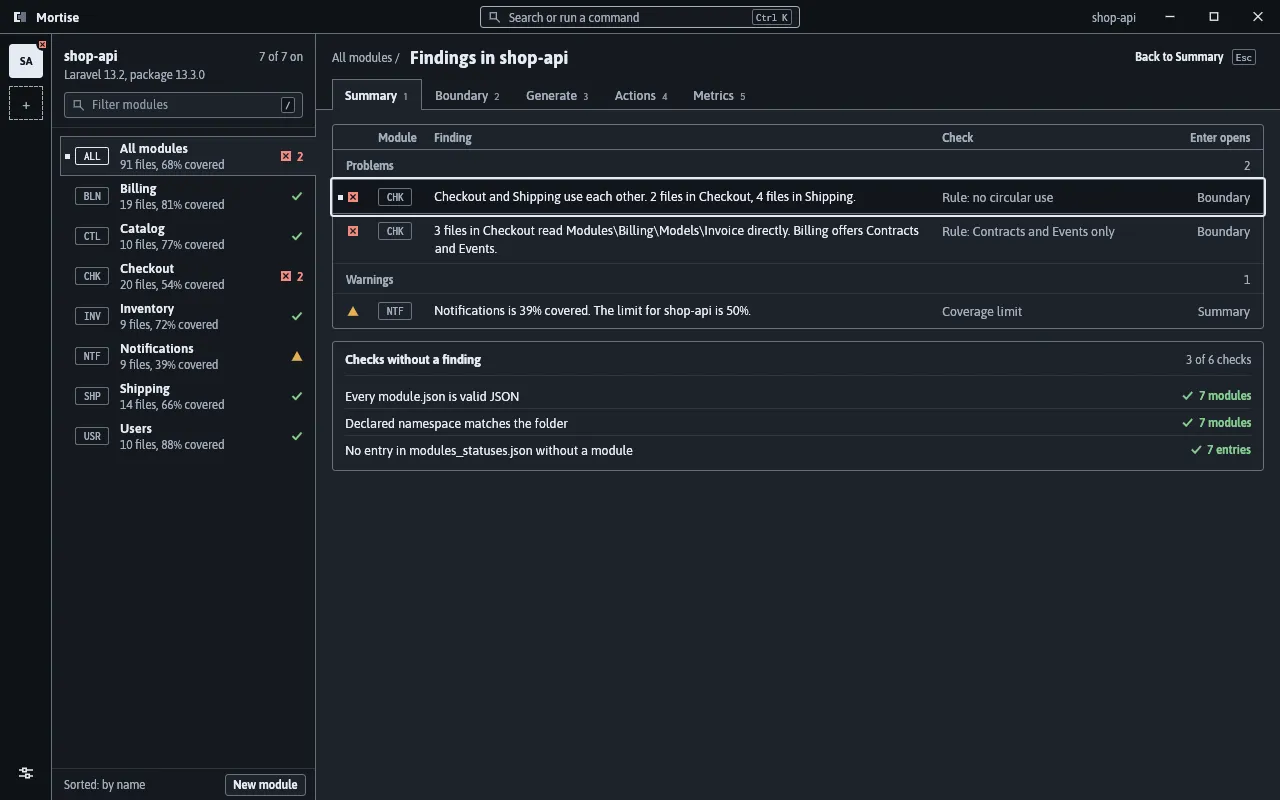
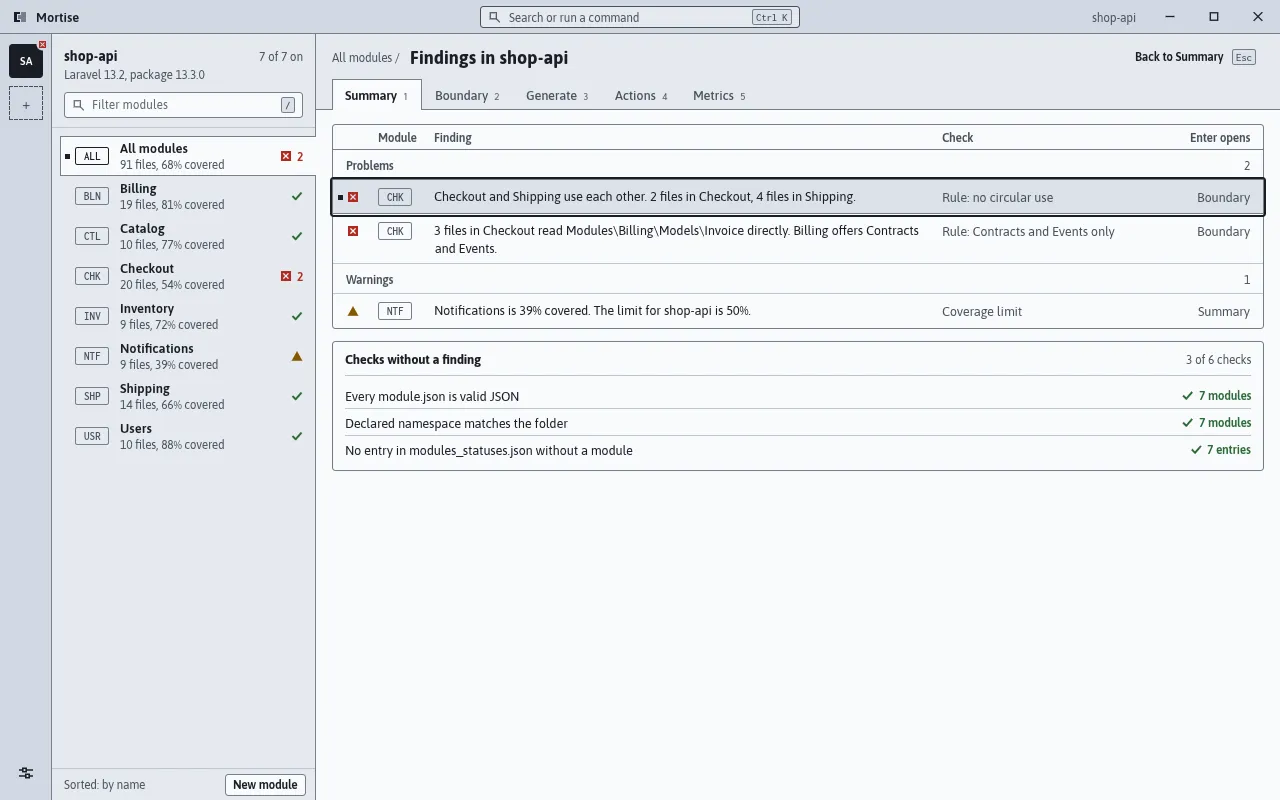
Read a row
Section titled “Read a row”The list holds the groups Problems, Warnings and To do, not counted as findings. Each row shows the code stamp of the module under Module, the sentence under Finding, the check that raised it under Check, and the tab it goes to under Enter opens. The box Checks without a finding lists the checks that ran and found nothing.
Go to where a finding lives
Section titled “Go to where a finding lives”-
Press J or K to move to the row.
-
Press Enter, or click the row.
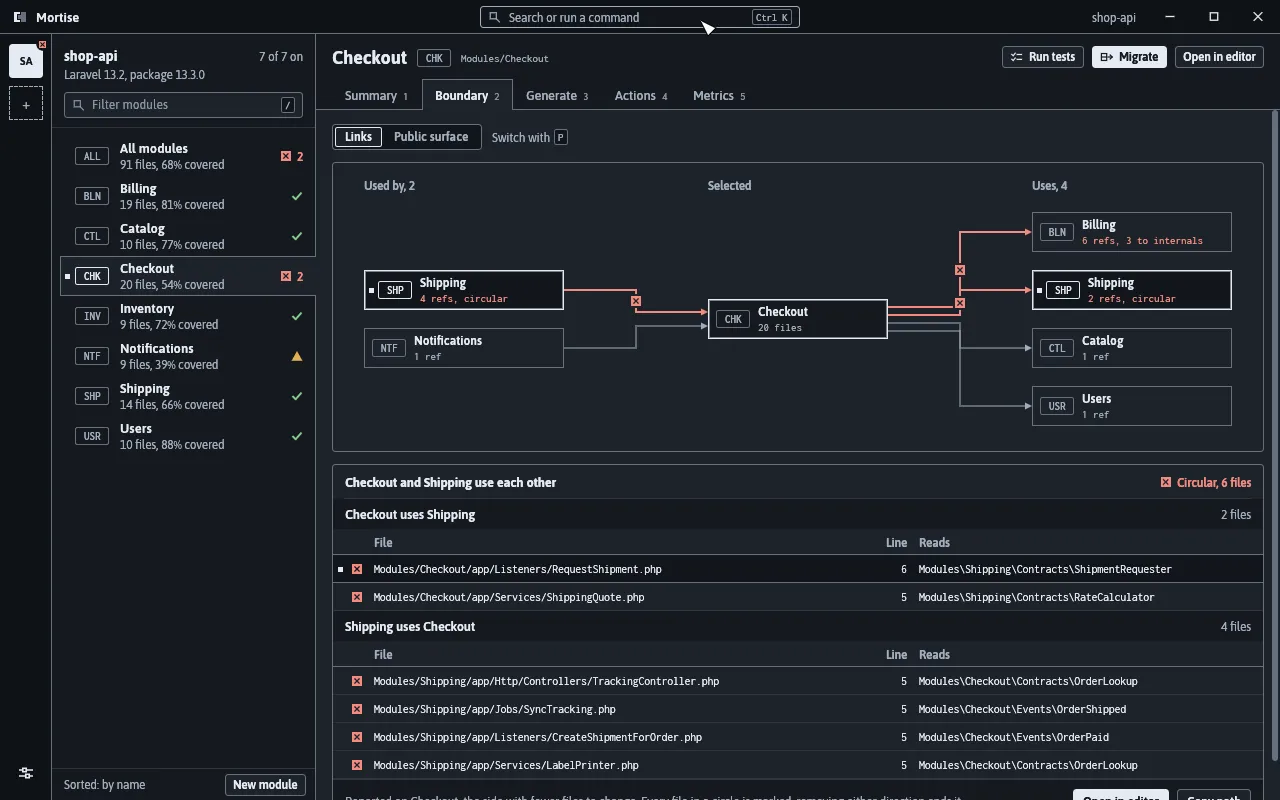
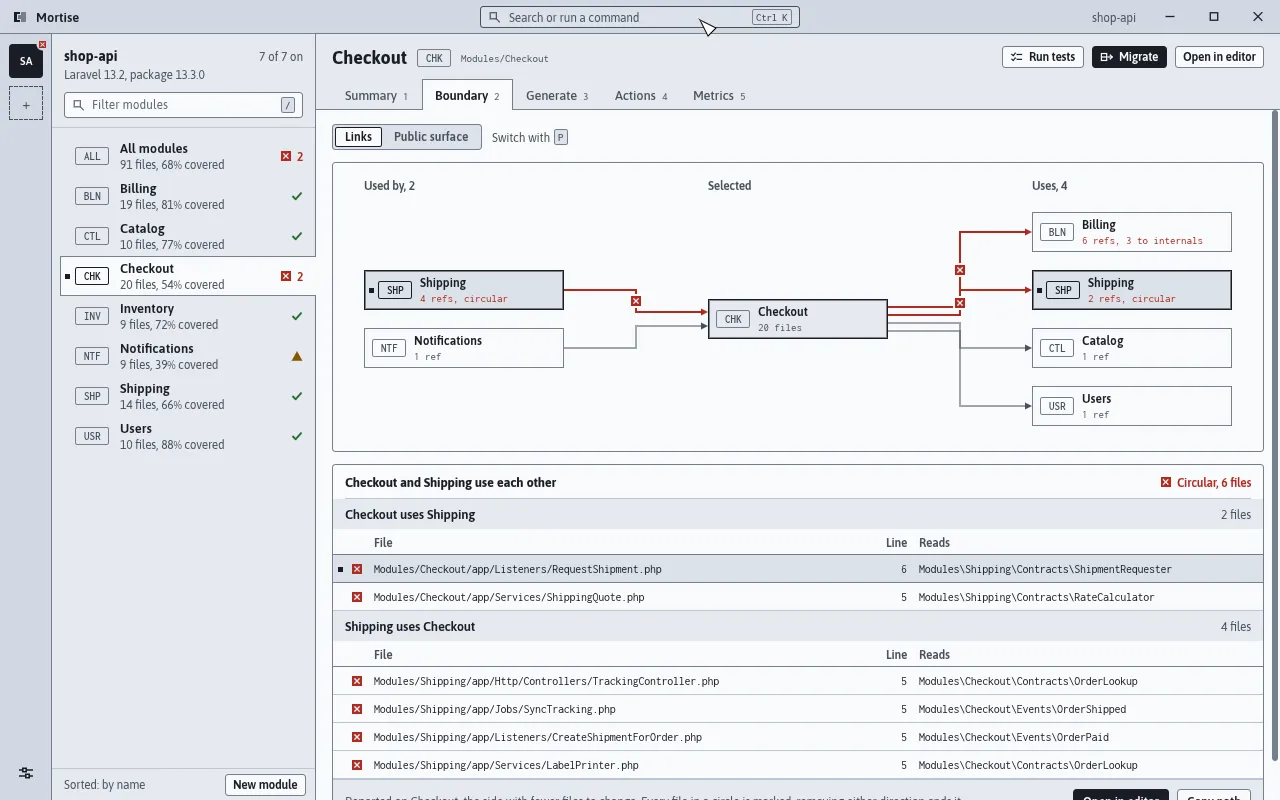
- A circle or a module that reads internals opens Boundary, on the link between the two modules.
- A translation warning opens Actions, on Check translations of the module.
- A waiting migration opens Actions, on Migrate of the module.
- Any other finding of a module opens the Summary of the module.
- A finding of the app itself, such as one about
modules_statuses.json, opens nothing. Fix it in the file.
-
To go back to the list, press Back to Summary or Esc, then F again.
Fix the usual kinds
Section titled “Fix the usual kinds”- Rule: no circular use: on the Boundary tab, read the files of the link. Every file is marked. Remove the use in either direction to end the circle. Select a file and press Open in editor, or Enter, to open it at its line.
- Rule: … only: the files that read internals come first in the table of the link.
Make them use a class in a public folder of the other module, such as
ContractsorEvents. - Valid module.json: correct the JSON, or add the
namethe package needs. - Namespace: make the namespace of the module end in the name of its folder.
- Statuses file: remove the module that has no folder from
modules_statuses.json. - Coverage limit: add tests to the module, then write the coverage report again.
- Translations: add the missing keys or files to the locale the sentence names.
- A waiting migration: press Migrate on the panel that Enter opened.
Change the rule or the limit instead
Section titled “Change the rule or the limit instead”If the finding is not something the app needs to fix, change what raises it.
- Coverage limit: open Settings with Ctrl , (Cmd , on macOS). In Apps, select the app and type a new per cent in Coverage limit. The default is 50%. The value applies when the field loses focus.
- Rule: no circular use and Rule: … only: turn a rule off, or add a folder that counts as public. See Add boundary rules to an app.
See the list update
Section titled “See the list update”Mortise watches the files of the app on screen. A save in your editor, or a new coverage report, reads the app again, and the list follows. Ctrl R (Cmd R on macOS) reads the app again at once.
Translation warnings come from the report of module:lang, not from the files.
After you fix a translation, press Check translations on the Actions tab of the module again.
This runs a command, so you need to have chosen the PHP for the app.
When nothing is left, the list says, for example, “No findings. 7 modules checked against 2 rules and 4 checks.”