
The window
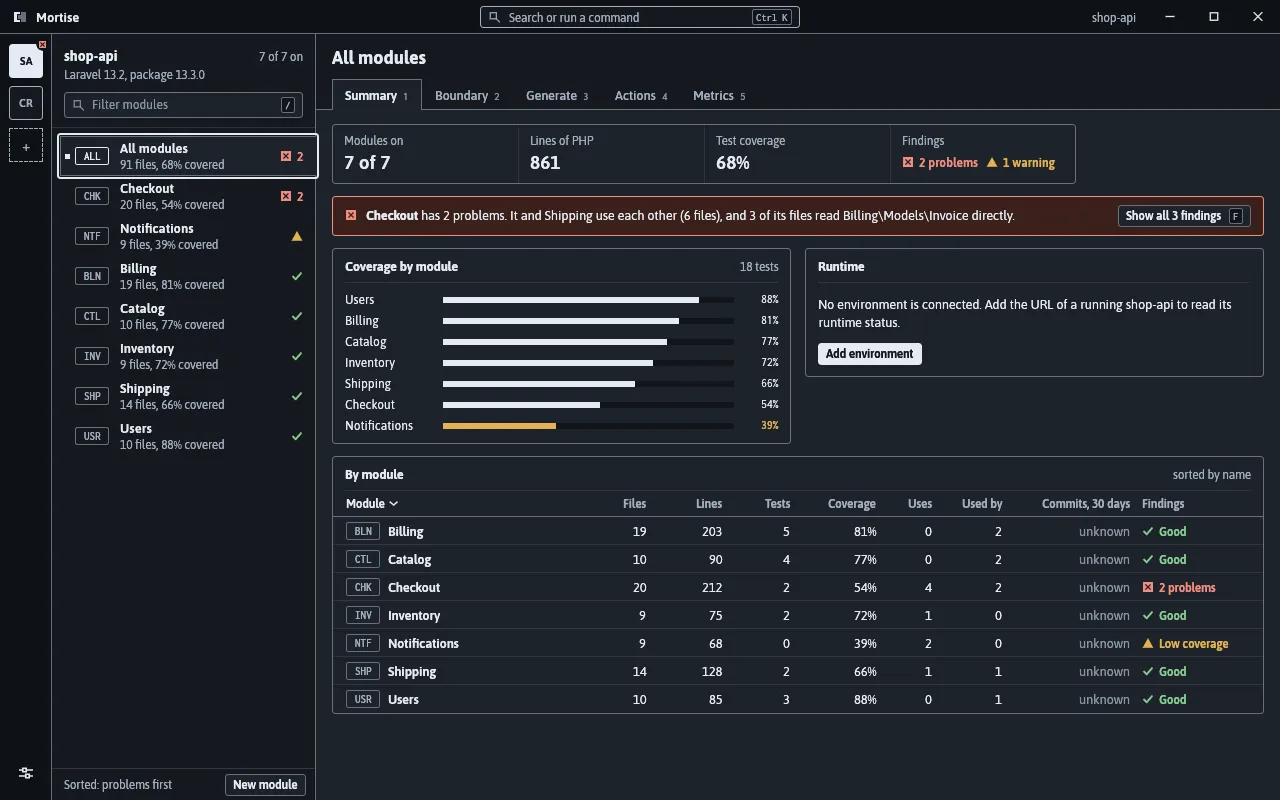
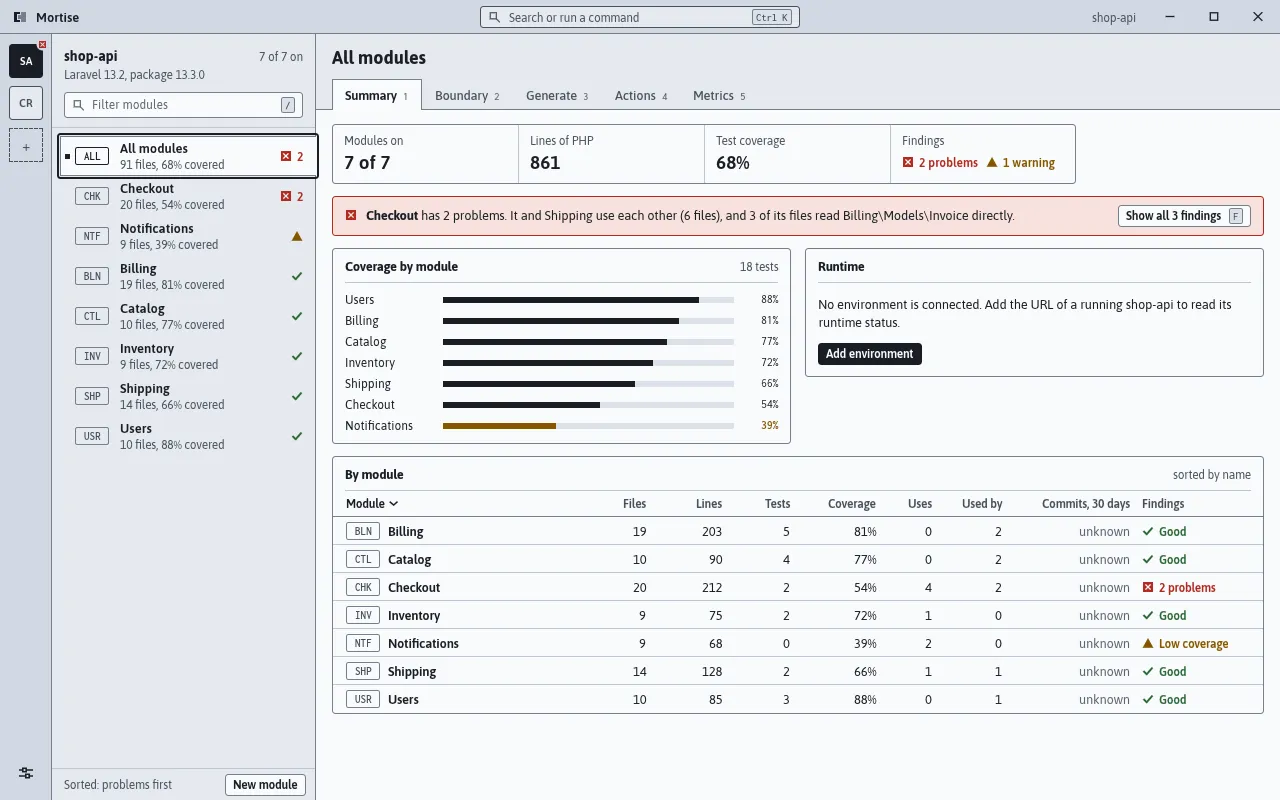
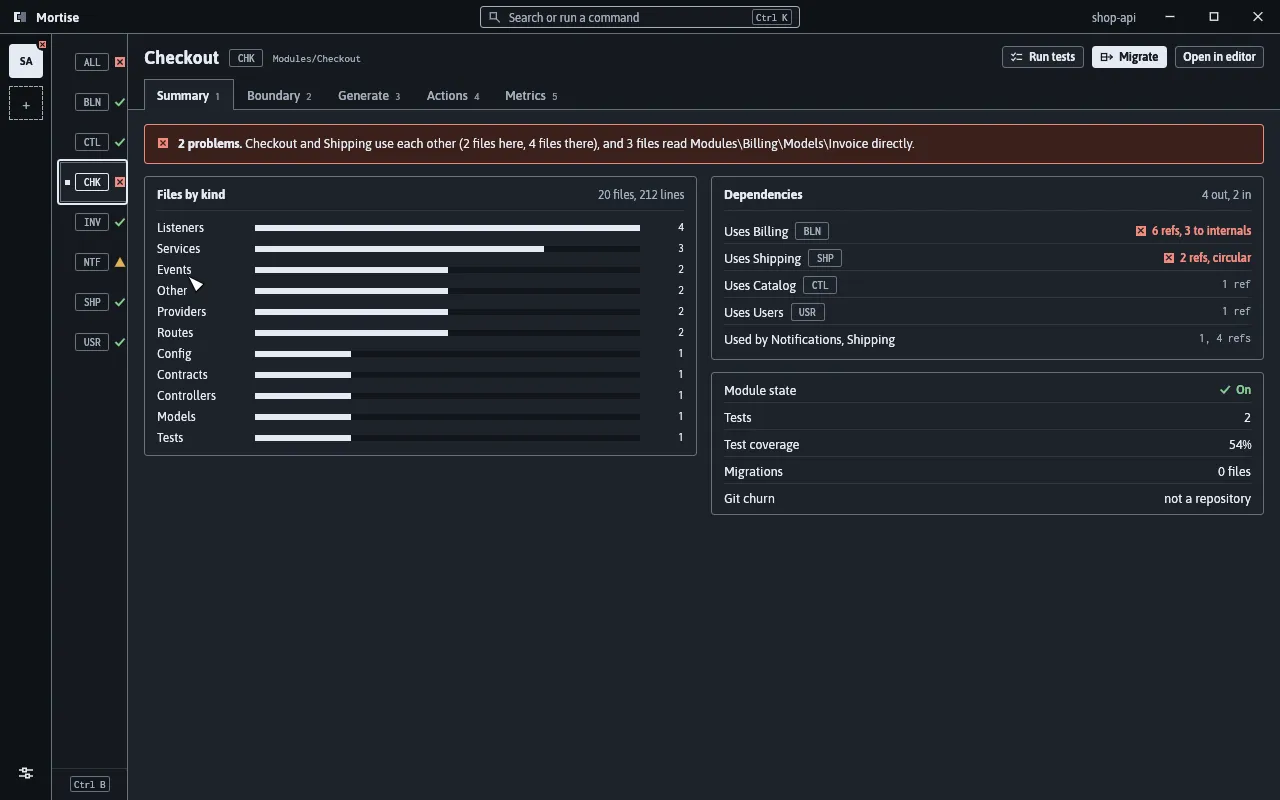
The window has five parts, from left to right and top to bottom: the title bar, the rail of apps, the module index, the workspace and the runner drawer. This page describes the first three and the header of the workspace. The tabs of the workspace have their own pages: Summary, Boundary, Generate, Actions and Metrics. The drawer is on the runner page.
Title bar
Section titled “Title bar”The title bar is 34 px high. It holds three things:
| Place | Shows |
|---|---|
| Left | The mark and the name Mortise |
| Middle | The entry to the command palette: “Search or run a command” and the key Ctrl K (Cmd K on macOS). Under 1100 px of window width it reads “Search or run” |
| Right | The name of the app that is open, or “No app” |
An empty part of the bar drags the window. A double click on it zooms or maximises the window.
The system draws its three window buttons at the left, over the bar of Mortise.
Mortise also fills the menu bar of macOS. The items have no shortcuts of their own.
| Menu | Items |
|---|---|
| Mortise | About, Settings…, Hide, Hide Others, Show All, Quit |
| File | Add App… |
| View | Command Palette, All modules, Findings, Collapse or Open the Module Index, Read the App Again, Theme: System, Theme: Light, Theme: Dark |
| Window | Minimize, Zoom, Bring All to Front |
| Help | Keyboard Shortcuts |
Mortise draws the window without the system frame. It draws three controls at the right of its bar: Minimise, Maximise (Restore while the window is maximised) and Close. Each is 44 px wide.
The Snap layouts flyout of Windows 11 does not open from the drawn maximise button. Dragging the window to an edge, and Win with the arrow keys, still snap it. Windows keeps a 1 px line above the bar.
Mortise draws the window without the system frame. It draws three controls in its bar: Minimise, Maximise (Restore while the window is maximised) and Close. Each is 44 px wide.
Settings > General > Window controls on Linux puts them at the Right (the default) or the Left.
Settings > General > Title bar chooses who draws the frame. Mortise is the frame described above. Platform keeps the title bar of the system, with the bar of Mortise under it. See Settings.
Rail of apps
Section titled “Rail of apps”The rail is the 52 px column at the left. It never changes width.


| Part | What it is |
|---|---|
| App tile | A 34 px square with the two-letter monogram of the app. The selected app is a filled block |
| Pip | A small problem mark on a tile. The app has at least one finding of the kind problem. Warnings and a runtime that is down raise no pip |
| Add tile | A dashed square with a plus. It opens the panel that adds an app. Its tooltip is Add app with Ctrl O |
| Settings | An icon at the bottom of the rail. It opens Settings. Its tooltip is Settings with Ctrl , |
The tooltip of a tile names the app and its problems, such as “shop-api, 2 problems”.
The tiles are in the order the apps were added. Drag a tile over another to move it. Alt Up and Alt Down move the focused tile. Ctrl Alt 1 to 9 select the first nine apps (Cmd Option on macOS).
When the tiles do not fit, they scroll with the wheel and with Up and Down. The add tile and Settings stay at the bottom. No scrollbar is drawn: a 1 px line at the top or bottom edge shows that there is more.
Module index
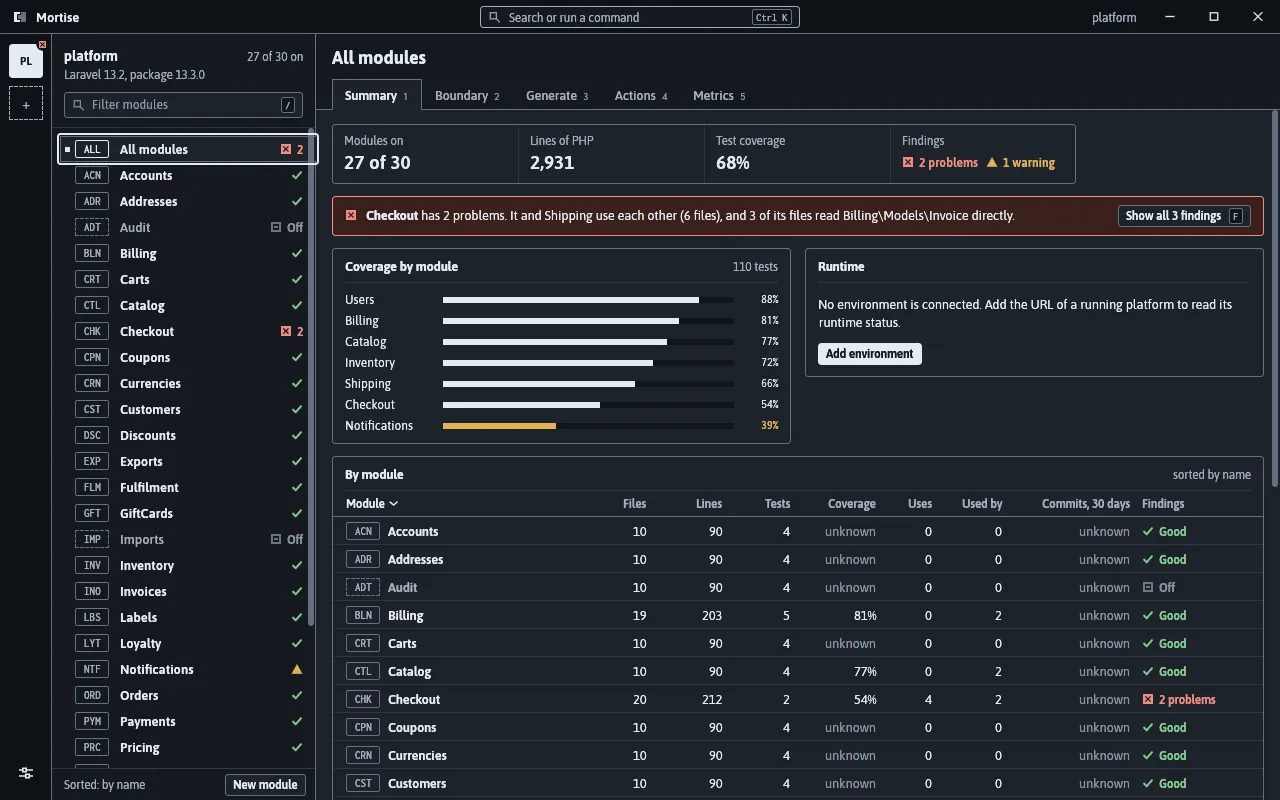
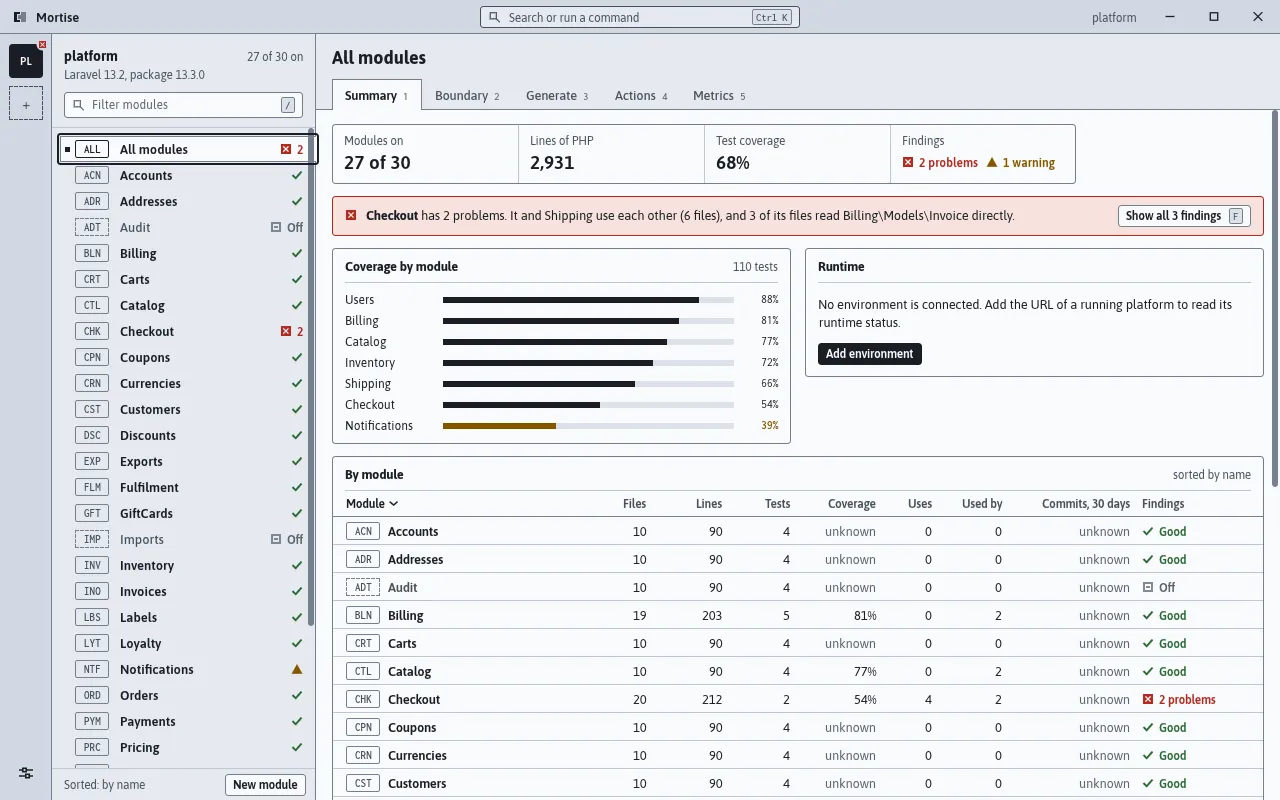
Section titled “Module index”The index lists the modules of the app that is open. It is 264 px wide by default. Drag its right edge, or focus that edge and press Left or Right, to set a width from 220 to 320 px. The edge is named “Width of the module index”.
Header
Section titled “Header”| Line | Example |
|---|---|
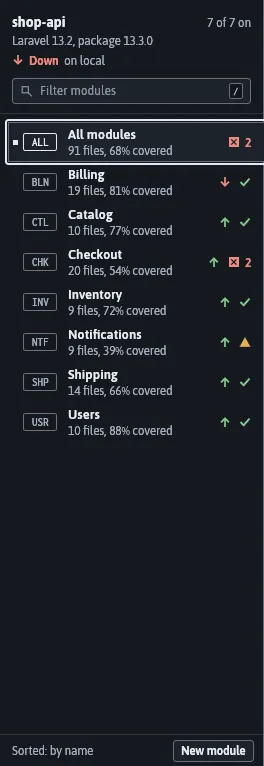
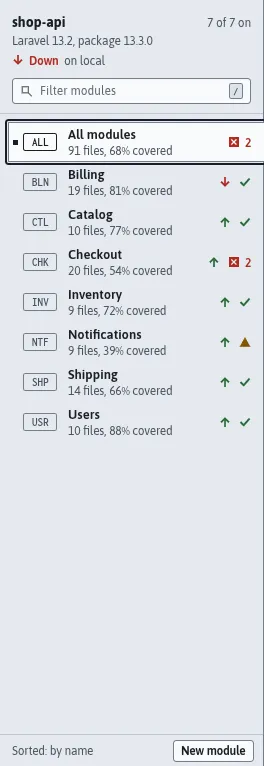
| App name and modules on | shop-api and “7 of 7 on”. When the on or off state cannot be read from a file, it reads “7 modules” |
| Versions | “Laravel 13.2, package 13.3.0”, from composer.lock |
| Runtime | A stroke mark, the word of the status and the environment, such as “Up on local”. Shown only while an environment is connected. “No answer” when the app gives none or refuses the credentials |
Below the header is the field Filter modules. Its key hint is /; once inside, it is Esc. The filter keeps a module when its letters are in the name or in the code, in any case. “All modules” always stays. When nothing matches, the list says “No module matches “paym”. Press Esc to clear the filter.”
The first row is All modules. Then one row per module.
| Part | What it shows |
|---|---|
| Code stamp | The three-letter code of the module, such as CHK for Checkout. Dashed when the module is off |
| Name | The module name. Lighter when the module is off |
| Second line | “84 files, 54% covered”, or “84 files” without a coverage report, or “38 files, turned off” |
| Finding mark | At the right. The worst finding of the module: a problem mark with the count, a warning mark, or the good mark. A module that is off shows the word Off and no finding state |
| Runtime mark | Left of the finding mark, while an environment is connected and the module reports a status. A stroke mark: Up, Down, Out of service or Unknown. Its tooltip reads “Up on local, checked 8 s ago” |
The row of All modules carries the problems of the whole app and the coverage of the app.
Rows have two lines up to 20 modules and one line above. Settings > General > Module index rows sets Automatic (the default), Two lines or One line.
Footer
Section titled “Footer”| Control | What it does |
|---|---|
| Sorted: by name or Sorted: problems first | Changes the order. Its tooltip is Change the order with S. The choice is kept per app |
| Count | Takes the place of the order while a filter is on: “1 of 7 modules” |
| New module | Opens the new module form of Generate. Nothing runs until you run the form |
By name is the default. Problems first puts modules with a problem first, then those with a warning, then the rest; each group stays in order by name. With one line per row and problems first, the modules with a finding are pinned under the heading Needs attention.
Index strip
Section titled “Index strip”The index collapses to a strip of stamps and marks, 76 px wide. It is 96 px wide while a row has a runtime mark, so the two marks sit side by side. The strip has the key Ctrl B (Cmd B on macOS) at its foot.
The index becomes the strip when the window is narrower than 1032 px. Ctrl B collapses or opens it by hand. Mortise then stops choosing until the window is resized. Opened by hand in a narrow window, the index takes 220 px and the workspace gives way.
Workspace header
Section titled “Workspace header”The header names what is selected and holds the tabs.
| Part | What it shows |
|---|---|
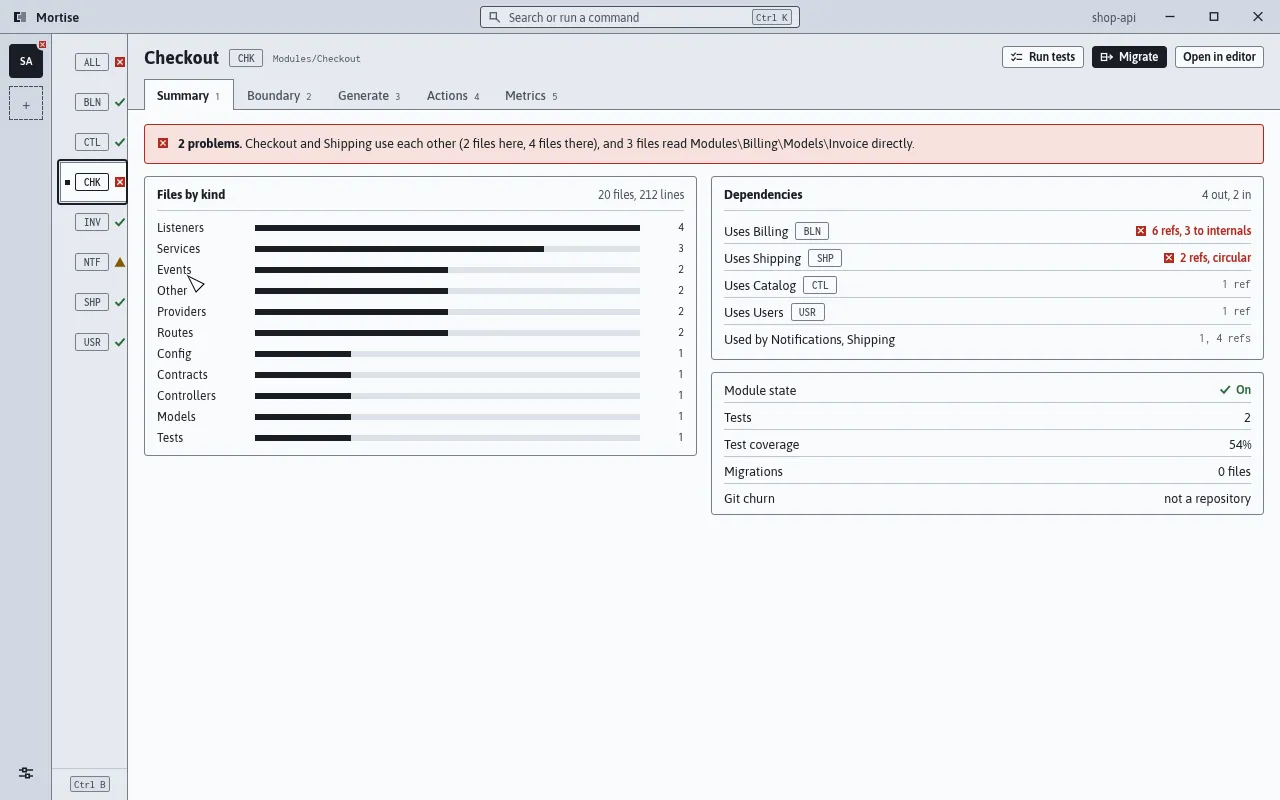
| Title | All modules, or the module name |
| Code stamp | For a module. Its tooltip reads “CHK is the code for Checkout” |
| Folder | For a module: its folder, such as Modules/Checkout. A long folder ends with an ellipsis |
| Buttons | For a module, except on Actions and Generate: Run tests, Migrate and Open in editor. Migrate reads “Migrate (1)” once the migration state is read and a migration waits |
| Run key | On Actions, and on a generator form: “Run with” and Ctrl Enter (Cmd Enter on macOS) |
| Tabs | Summary 1, Boundary 2, Generate 3, Actions 4, Metrics 5 |
The chosen tab stays while you move from module to module. While the Findings list is open, the title reads “All modules / Findings in shop-api” and a Back to Summary button with Esc sits at the right.
Empty and error states
Section titled “Empty and error states”| State | Title | Text and controls |
|---|---|---|
| No app added | No apps yet | “Add the folder of a Laravel app that uses nwidart/laravel-modules. Mortise reads its modules from disk and changes nothing until you run a command.” and Add app folder with Ctrl O |
| An app that cannot be read | “shop-api cannot be read” | Why, and what to do next. For example: “No composer.lock in ~/code/shop-api. Mortise reads versions from it. Run composer install in the app, then choose the folder again.” |
| A large app on its first read | none | A bar: “Reading 61 of 96 files” |
Broken settings.json |
none | “Mortise could not read its settings, so it starts without apps. The old file is kept as …” |
The read errors are:
- No Laravel app: the folder has no
artisanfile and nocomposer.jsonthat requireslaravel/framework. - No
composer.lock. - The app does not use
nwidart/laravel-modules:composer.lockhas no entry for it. composer.lockis not valid JSON.- The system could not read a file.
See also Keyboard for every key of the window.